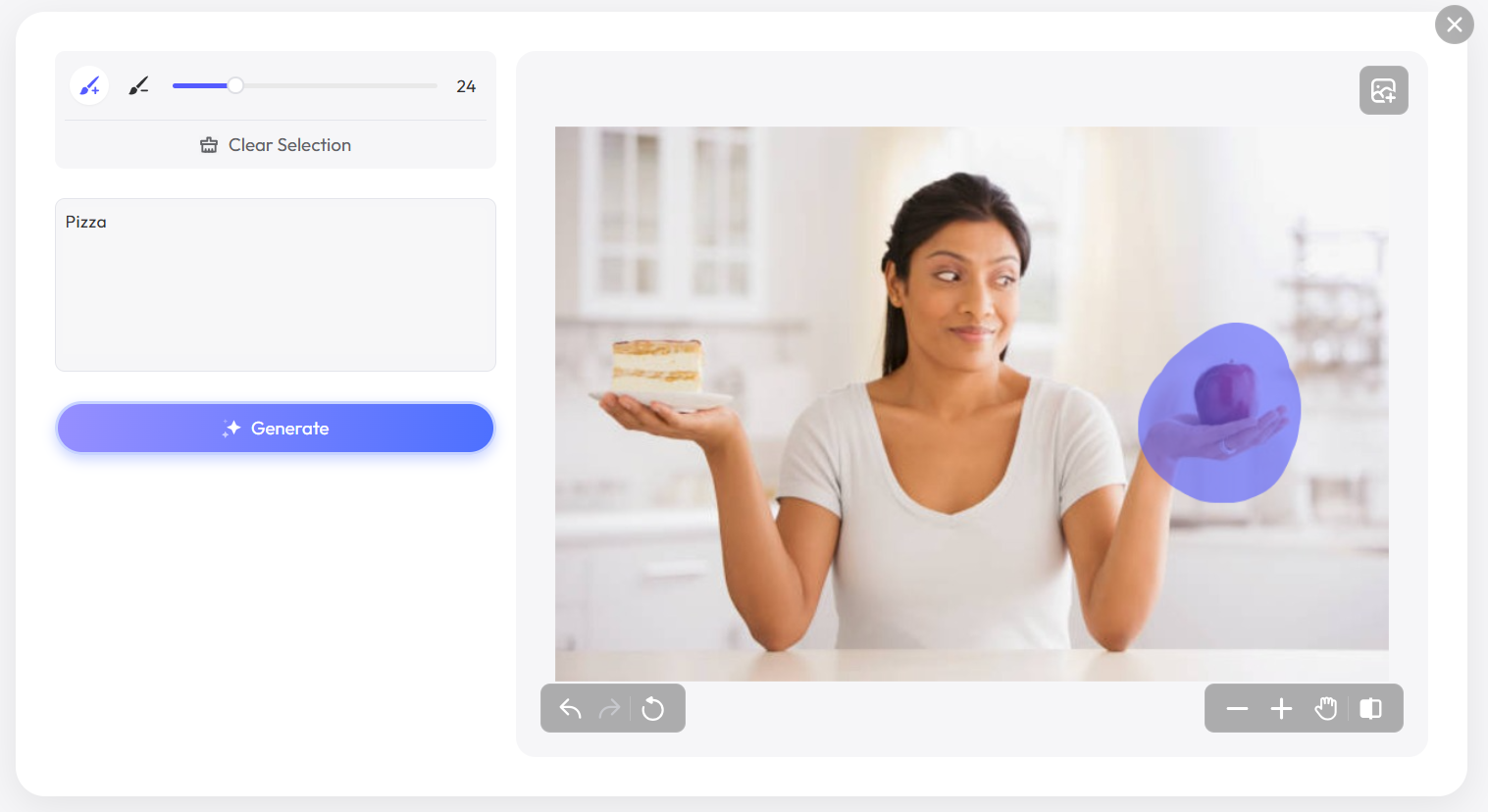
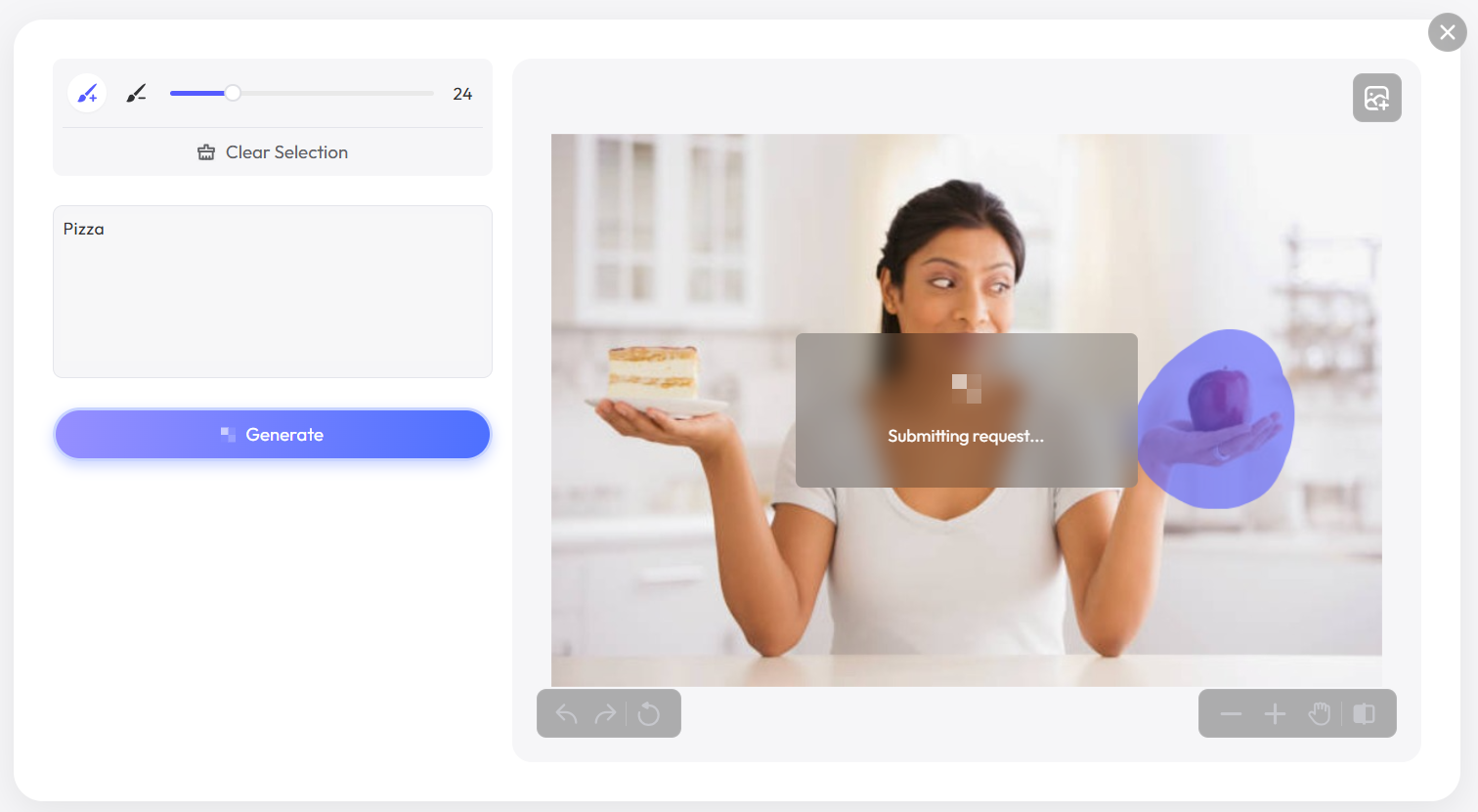
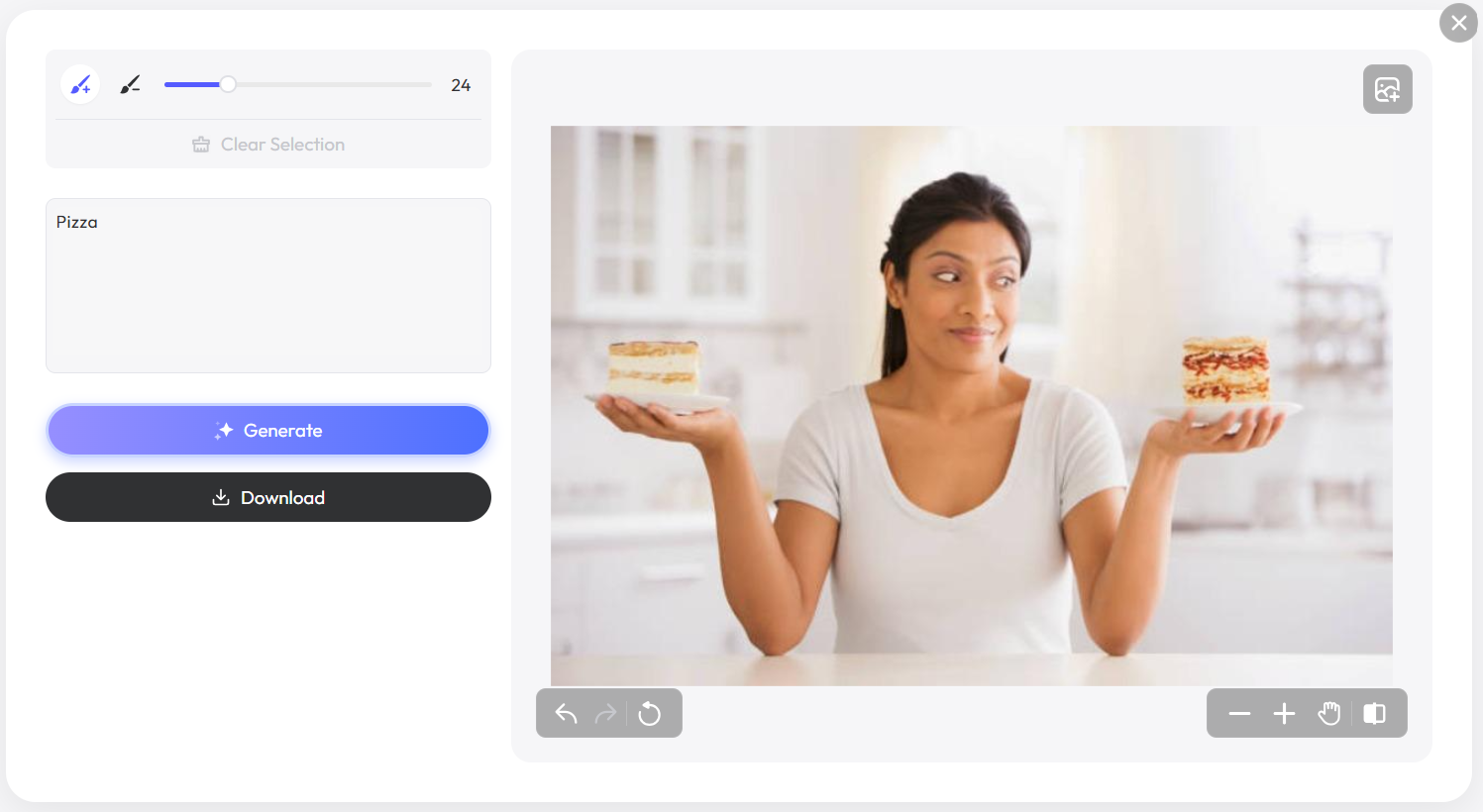
Select · describe · generate

Replace Objects and Selected Areas With AI

Upload an image, brush over the part you want to change, and describe the replacement. PxBee generates new content inside the selected area while using the rest of your image as visual context.
Try a Sample
  • ✓ JPG, JPEG, PNG or WebP
  • ✓ Up to 20 MB
  • ✓ Review every generated edit
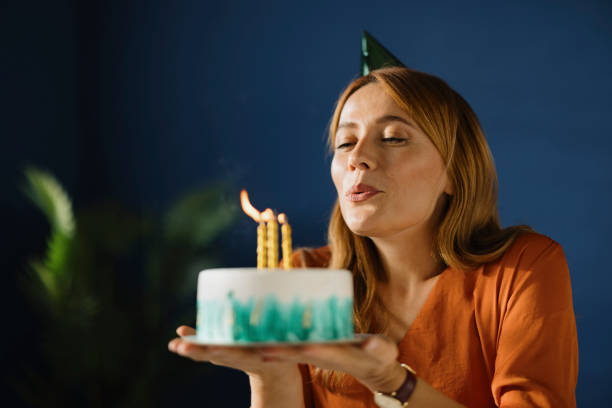
Birthday cake before AI object replacement
Original object
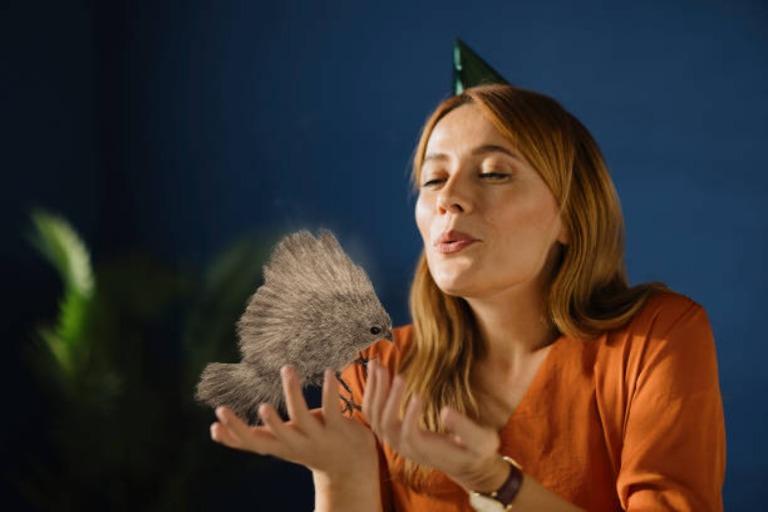
Cake replaced by a generated squirrel in the same photo
Generated replacement
Localized generative editing

Change One Part of an Image—Not the Whole Photo

Choose a file and describe the replacement before opening the PxBee editing workspace.

Magic Brush workspaceSelect the image now; brush controls open in the editor.
0 / 300

Choose an image and enter a prompt to continue.

Only upload images you own or may edit. Review the Privacy Policy.

Sample photo ready for an object replacement
Drop your image hereor choose JPG, JPEG, PNG or WebP · up to 20 MBChoose Image
Focused creative changes

Change One Object, Accessory or Detail

Sometimes a photo is almost right, but one object, color, accessory or detail does not fit. PxBee AI Replace lets you select a particular image region and generate something new in its place.
Replace an object on a tableAdd furniture to an empty roomTry another accessoryChange an item of clothingExplore a hairstyleReplace part of a backgroundRestyle a small image area
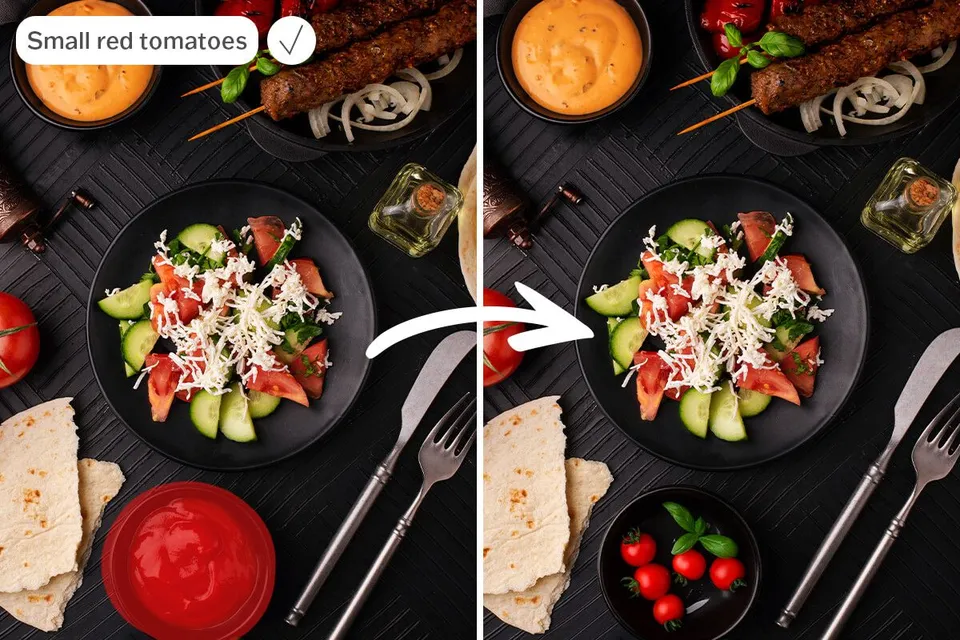
Small red tomatoes added to a food photograph with AI Replace
A concise prompt adds a defined object in a selected area.
Mask + prompt + visual context

What Is AI Replace?

AI Replace is a localized generative editing tool—sometimes called generative inpainting.

01

The Magic Brush sets the boundary

The mask defines where editing is allowed and protects the rest of the photo as much as possible.

02

Your prompt describes the result

The surrounding photo supplies context while the prompt explains what should appear inside the selected area.

Six practical steps

How to Replace an Object in a Photo

  1. 01

    Upload your photo

    Choose a supported image containing the object or area you want to edit.

  2. 02

    Brush over the complete area

    Cover the object, its visible edges and any shadow that should also change.

  3. 03

    Describe the new object

    Write what you want to see. Include color, material, size and placement when they matter.

  4. 04

    Generate the replacement

    PxBee uses the mask, prompt and surrounding image as visual context.

  5. 05

    Review the result

    Check scale, perspective, lighting, contact points, shadows and important details.

  6. 06

    Download your preferred edit

    Save the version that best fits your image and intended use.
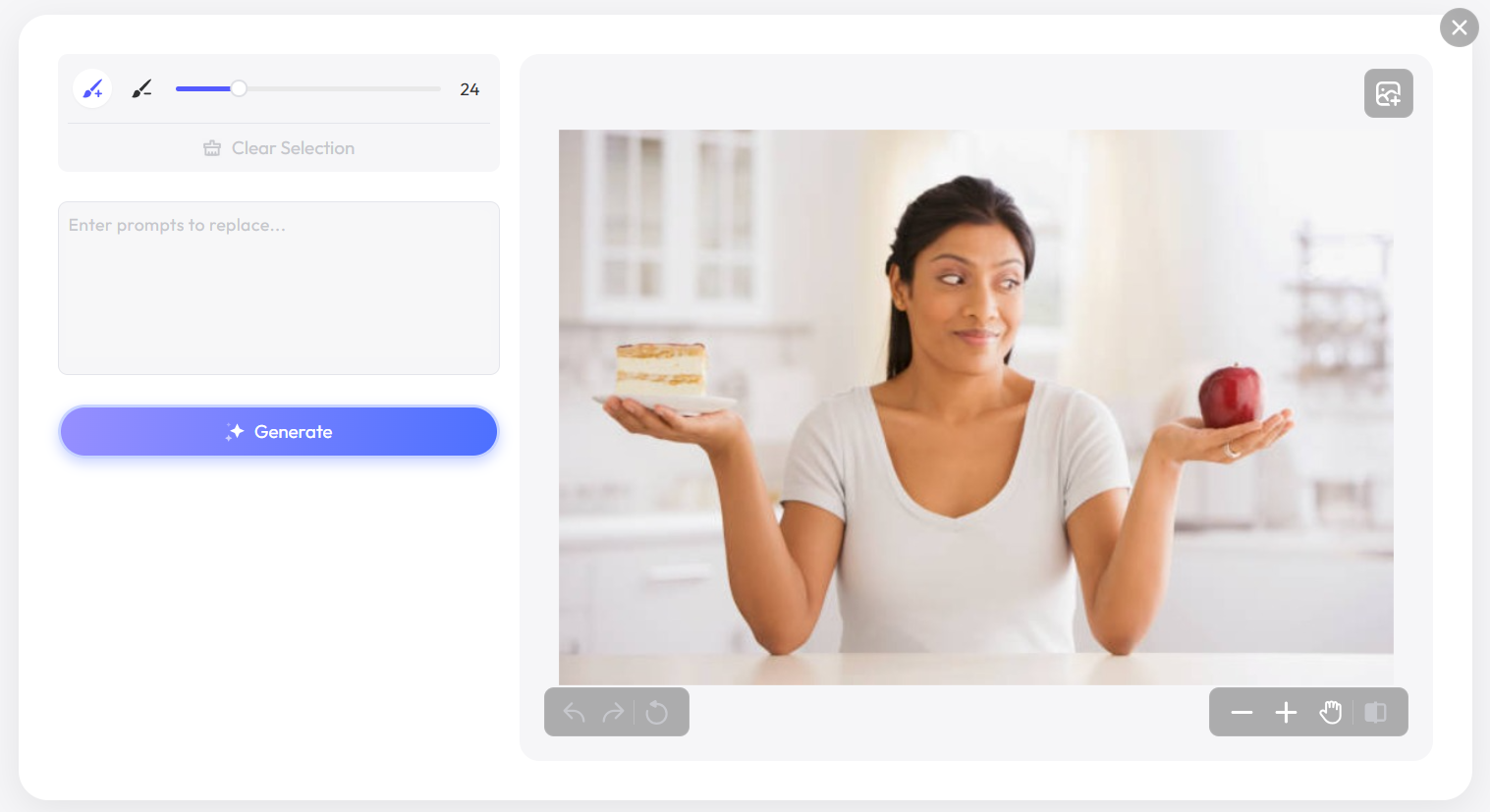
AI Replace guide step one showing image upload
Upload
AI Replace guide step two showing a brushed mask and prompt
Brush + prompt
AI Replace guide step three showing the generation request
Generate
AI Replace guide step four showing the finished replacement
Review result
Give the generator clear boundaries

Select the Right Area With the Magic Brush

Cover the whole original object and add only a narrow margin when blending needs more context.

Too small

Cover the complete object

Include every visible part. A partial mask may leave fragments behind.

Too wide

Avoid excessive selection

Too much extra space can cause unrelated parts of the image to change.

Recommended

Use a careful margin

A small surrounding area can help the new content blend into the scene.

Protect edges

Check hidden boundaries

Use a smaller brush near hair, fingers, handles and overlapping objects.

Tell the model what should appear

Write Better AI Replacement Prompts

Start with the new object. The brush already tells PxBee where to edit, so use the prompt for the object, color, material, shape, size, angle, lighting, placement and style.

Good promptSmall green ceramic vase with white flowers
Less usefulRemove the lamp and make the photo better

Complete one localized edit at a time. Avoid prompts requesting protected logos, counterfeit packaging, forged documents or deceptive evidence.

TaskExample prompt
Replace a cup
Replace a lamp
Add flowers
Change an accessory
Replace furniture
Add food
Restyle fabric
Replace a sky region
Early product and campaign concepts

Replace Objects in Product and Marketing Images

Explore decorative props, display surfaces, seasonal elements, accessory combinations, layout concepts and campaign directions without arranging every physical variation.

Protect product accuracy

Generated editing can unintentionally alter packaging text, product color, logos, labels, controls, dimensions or included accessories. Do not publish an image that misrepresents what a customer will receive.

For detailed instructions, read how to replace an object in a photo or add an object to a photo with AI.
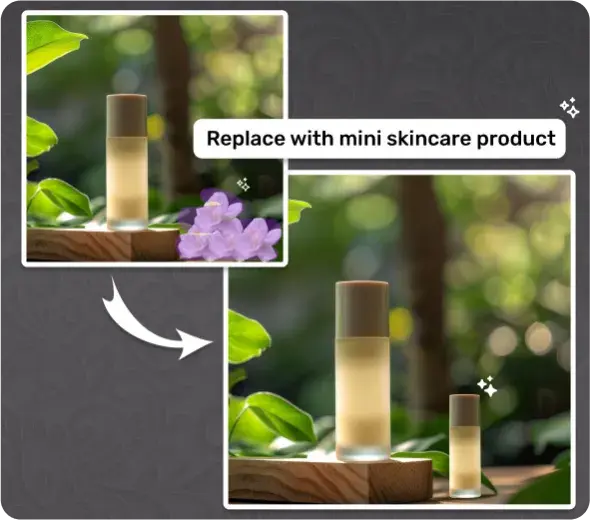
Mini skincare product added beside a larger product with AI Replace
Generated concept variations need a product-accuracy review before publication.
Add content to empty space

Add New Objects With AI

Brush over an empty area and describe what should be added. Select enough room, state where the object should sit, match the camera angle, describe a suitable size and mention the expected surface or shadow.

Open AI Generative Fill →
Food added to an empty area using AI generative fill
Retain shape and texture

Change Colors Without Replacing the Entire Object

If the shape and texture are already correct and only the color should change, a full generative replacement may introduce unnecessary differences.

Use AI Color Replace →
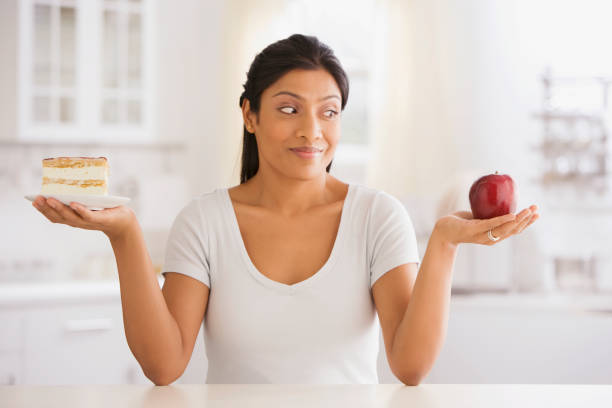
Image illustrating a choice between two visual variations
Localized scene editing

Replace a Sky or Background Area

Use AI Replace when only part of a scene should change. Check light direction, reflections, horizon edges, weather consistency, ground shadows and color cast on the subject.

Use the Background Changer for the complete background or AI Sky Replacement for focused sky controls. Read how to change the sky in a photo.
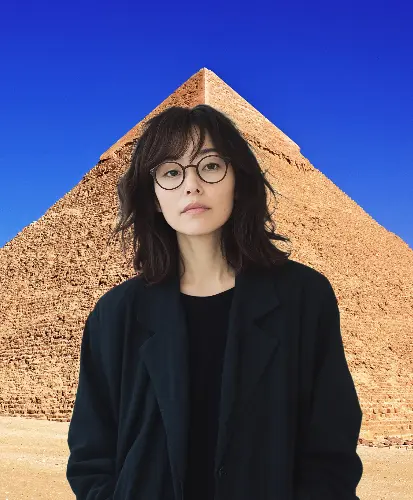
Portrait with a generated replacement background
Choose the focused PxBee workflow

AI Replace Versus Other PxBee Tools

ToolBest used when
AI ReplaceYou want to generate new content inside a selected area
AI Generative FillYou want to add or reconstruct image content
Magic EraserYou want an unwanted element removed without specifying a replacement
Background ChangerYou want to replace the complete background
AI Sky ReplacementYou specifically want to change the sky
AI Color ReplaceYou want to change color while retaining the object
AI Image ExtenderYou want to generate content beyond the current canvas
Generated details need human review

Review Generated Edits Carefully

AI replacement can create useful variations, but it can also introduce visual errors. When exact wording matters, use a proper text or design editor rather than generated text.

Read AI Image Editing Limitations →
Faces and handsText and numbersLogos and labelsRepeated patternsProduct detailsReflectionsShadowsPerspectiveObject scaleAreas just outside the mask
Permission, consent and disclosure

Use AI Replace Responsibly

Only edit images you have the right to use. Get informed consent before making realistic appearance or identity changes to another person.

Disclose generated edits when viewers could reasonably mistake them for authentic documentary images.

Do not use AI Replace to

  • Impersonate someone
  • Create non-consensual intimate content
  • Forge documents
  • Fabricate evidence
  • Misrepresent products
  • Falsely depict real events
  • Create deceptive endorsements
  • Violate copyright or privacy
Answers before generating

AI Replace FAQ

PxBee AI Replace is a localized image editor. You brush over an image area, describe the desired replacement, and generate new content inside the selection.

Upload the photo, brush over the complete object, describe the new object, generate the edit and inspect the result before downloading.

Yes. Select an appropriate empty area and describe the object, its placement and relevant visual details.

Cover the object or region you want to change. Include its edges and any shadow that should also be regenerated.

Describe the desired object directly. Add color, material, angle, size and placement when those details are important.

The brush mask may not have covered the entire object. Expand the selection to include all edges and remaining fragments.

The prompt or mask may not provide enough scale guidance. Try a differently sized selection or include words such as small, tabletop or life-size.

AI Replace can edit a selected background region. Use the Background Changer when the entire background needs to change.

Yes, for creative previews. Focused AI Clothes Changer and Hairstyle Changer pages provide more direct workflows.

It may generate text-like content, but exact spelling and typography are not guaranteed. Use a text editor when precise wording is required.

No. Magic Eraser removes an unwanted item and reconstructs the area. AI Replace lets you specify what new content should appear there.

They use closely related workflows. This parent page focuses on replacing selected content, while AI Generative Fill focuses on adding or reconstructing content.

The tool is browser-based. Brush, zoom, prompt entry and download behavior can vary across current iPhone and Android browsers.

The current uploader accepts JPG, JPEG, PNG and WebP images up to 20 MB.

PxBee currently presents the tool as free. Review the live editor for current generation credits, daily limits, output restrictions or paid features.

This page allows image selection without signup. Verify any account requirement shown during generation or download in the live editor.

Commercial use depends on PxBee terms, your rights to the source image and the nature of the generated edit. Review the current license before publishing.

Review the Privacy Policy for current processing, retention, deletion, security and model-improvement information before uploading private content.

Only with that person’s informed permission and for a lawful, non-deceptive purpose. Do not impersonate, exploit or misrepresent another person.

The mask is intended to focus the edit, but generated processing may still affect nearby pixels. Compare the output with the original before publishing.
Ready to replace something?

Select the Area and Describe What Should Appear

Upload your image, create a careful mask, write a direct prompt and review the generated result before publishing.

Current editor limits and export terms may apply.
Finished AI object replacement created with PxBee