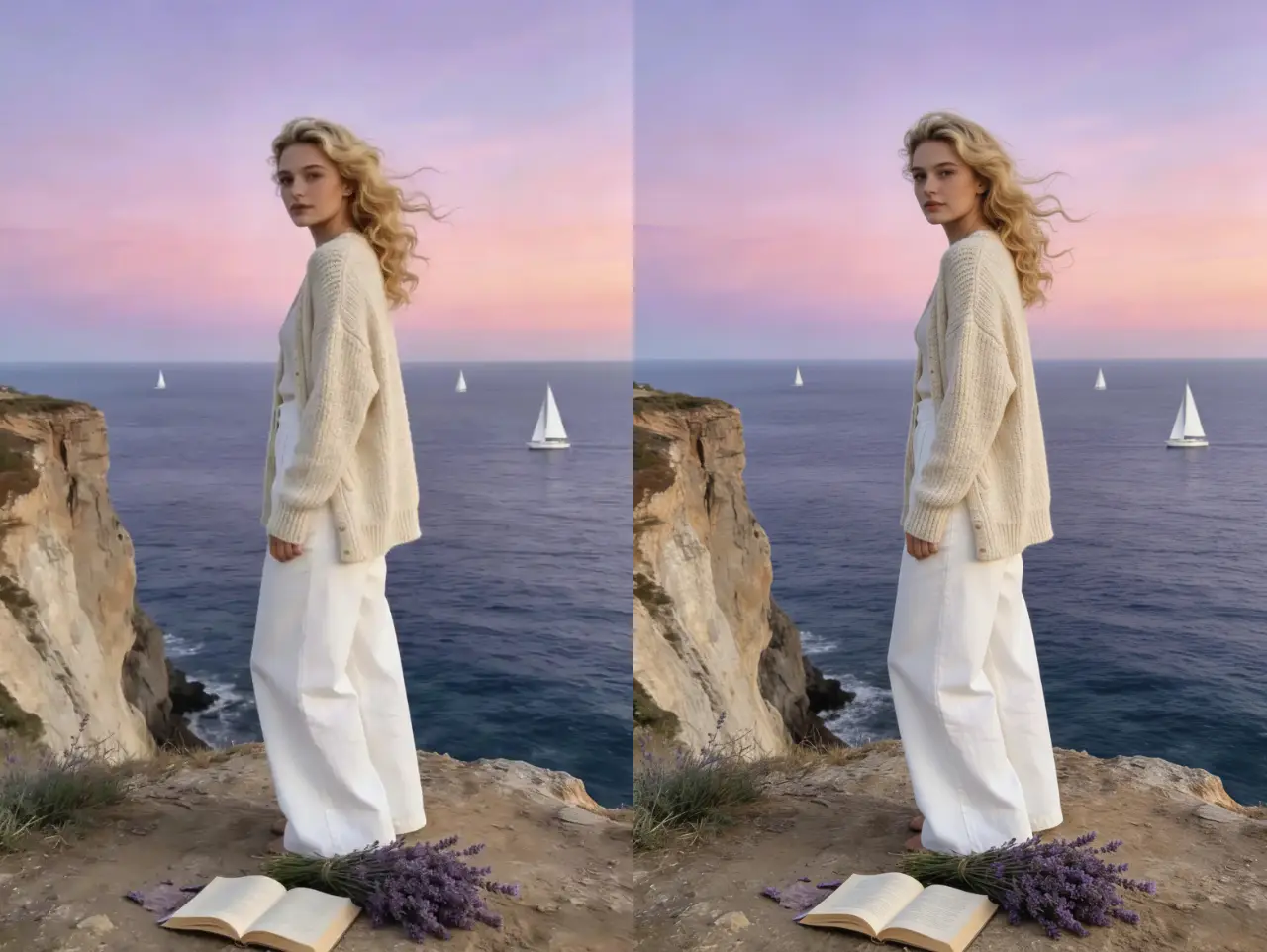
Soften camera shake
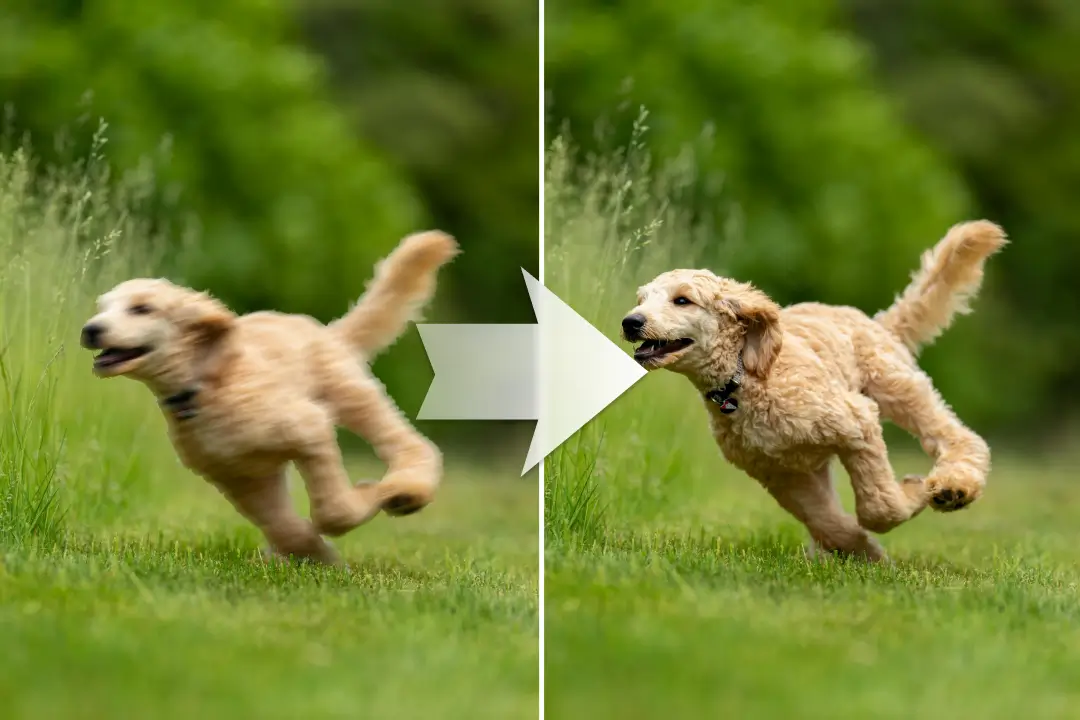
Reduce the appearance of mild blur caused by small hand movements and create cleaner-looking edges.
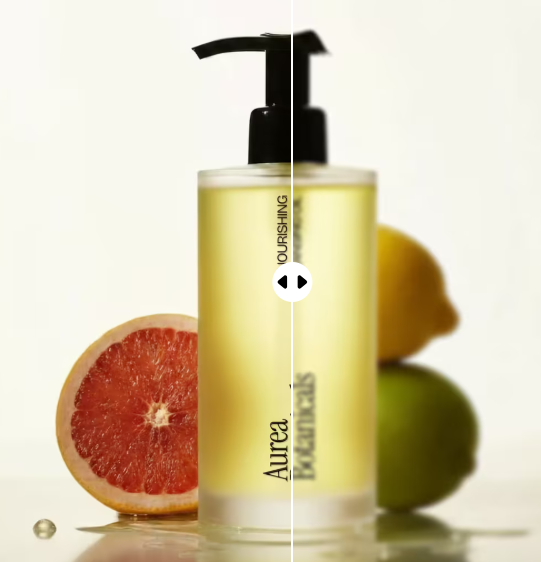
Drag the control to inspect the blurry and clearer image.
Make a blurry photo look clearer in a few clicks. PxBee reduces visible blur, sharpens important edges and improves photo definition automatically.
A good photo can look soft because the camera moved, the subject moved or focus landed in the wrong place. PxBee analyzes the uploaded image and applies AI-assisted deblurring, sharpening and detail enhancement.
It is suitable for mildly or moderately blurred images. Results depend on the source; no editor can reliably recover every detail missing from a severely blurred photo.
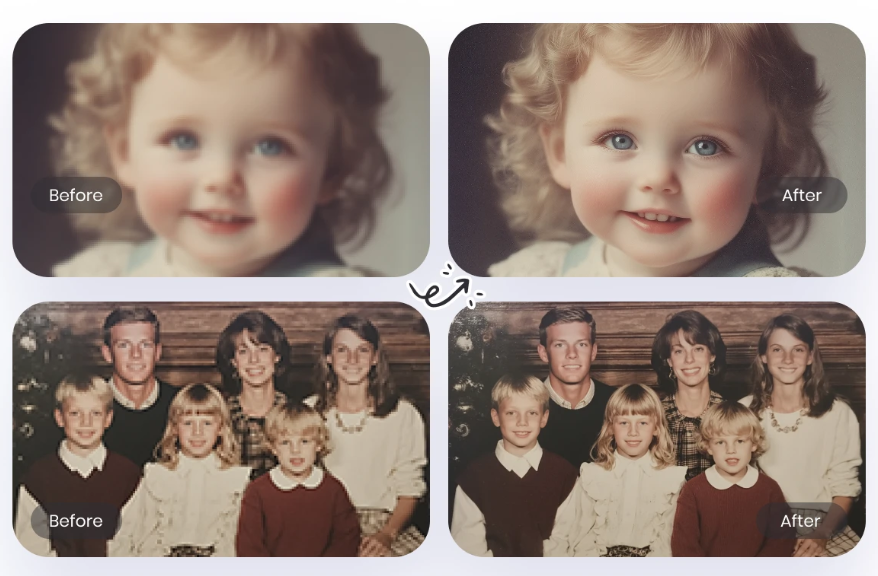
Reduce the appearance of mild blur caused by small hand movements and create cleaner-looking edges.
Improve some directional trails caused by a moving subject. Severe movement cannot always be reconstructed accurately.
Increase local contrast and definition when the camera missed focus by a small amount.
Reduce the soft appearance caused by repeated downloads, messaging and lossy saves.
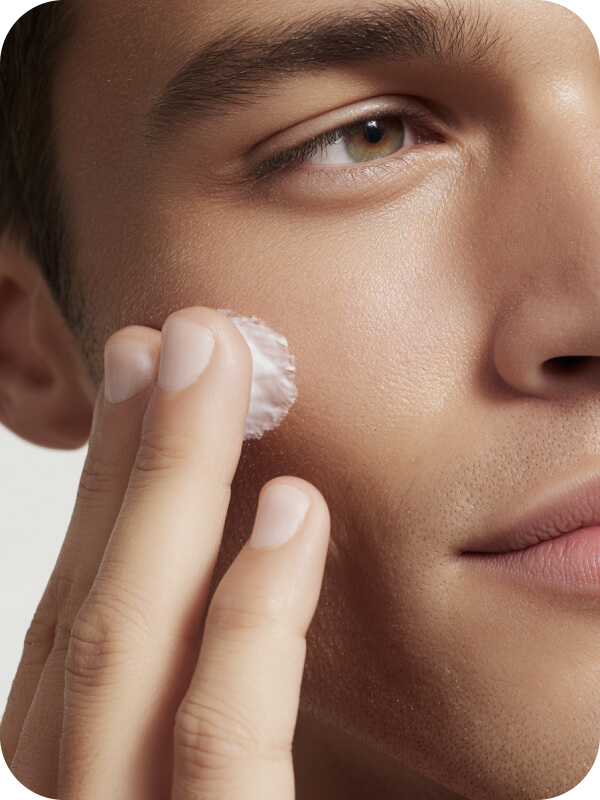
Clarify visible eyes, hair, clothing and facial edges while keeping a natural overall appearance.
Make product edges easier to view while checking labels, colors, textures and features against the original.
Different image problems need different tools. Choosing correctly helps produce a more natural result.
| Your image problem | Best PxBee tool |
|---|---|
| The photo looks soft, shaken or slightly out of focus | Unblur Image AI |
| You can see large square pixels or jagged blocks | Unpixelate Image |
| The image is clear but too small | HD Photo Converter |
| The photo needs broader quality improvements | AI Photo Enhancer |
| You need to erase a distracting object | Magic Eraser AI |
Choose the largest available JPG, JPEG, PNG, WebP, HEIC or HEIF original.
PxBee analyzes soft areas and applies deblurring, sharpening and detail enhancement automatically.
Inspect faces, fingers, text, labels, fine patterns and straight edges at full size.
Save the result when it looks natural, and keep the original as your authoritative source.
Upload, process, compare and continue from a current browser without complex sharpening controls.
Select an image on this page without creating an account. Any later requirement is controlled by the live editor.
Choose JPG, JPEG, PNG, WebP, HEIC or HEIF images up to 20 MB.
Improve portraits, products, pets, travel shots, screenshots, old prints and creative assets.
Use a visible comparison to decide whether the processed result is a genuine improvement.
Continue to Photo Enhancer, HD Converter or Unpixelate Image when a different problem dominates.
Reduce mild softness before using a portrait on a professional profile, social account or personal website.
Improve visible edges and presentation, then confirm the result has not changed the real product.
Enhance scanned prints softened by age, scanning or repeated copying while preserving the original scan.
Make a phone photo clearer before cropping or resizing it for a post.
Improve the definition of artwork, graphics and photo elements used in a presentation, poster or digital design.
Blur reduction works best when the source still contains recognizable edges and visible features.
Do not use reconstructed text, faces, plates, signatures, medical images or security footage as proof of what appeared in the original.
Read AI Image Editing LimitationsA full-size camera file normally contains more usable detail than a thumbnail, screenshot or social-media copy.
Several sharpening passes can create halos, harsh edges, artificial skin and false texture.
Inspect faces, hands, writing, numbers, logos and product labels before publishing.
If the photo contains large square blocks, use Unpixelate Image rather than only sharpening it.
AI can estimate detail. Never treat enhanced text, faces, signatures, plates or security footage as proof.
Improve broader clarity, tone and overall quality.
Open Photo EnhancerIncrease output dimensions for a clear but small image.
Convert to HDRepair visible square pixels and blocky edges.
Unpixelate an imageUpload your image and let PxBee improve visible sharpness automatically, then inspect the result against the original.
JPG, JPEG, PNG, WebP, HEIC and HEIF supported