Guided cleanup tutorial
Remove the Main Clutter, Then Refine
Start with the largest distraction, inspect the surface and switch to a smaller brush for cables or remaining fragments.
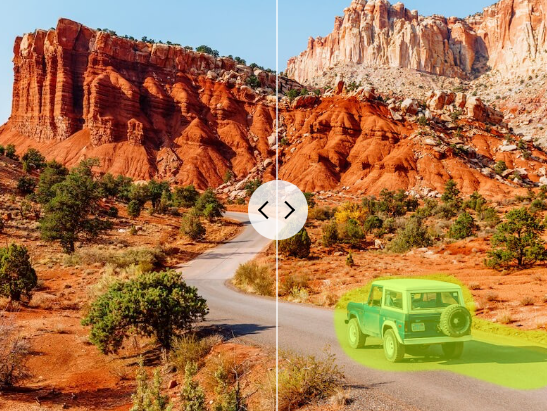
Brush over unwanted objects, wires, props or small distractions. PxBee removes the selected content and reconstructs the cleared area using the surrounding image.
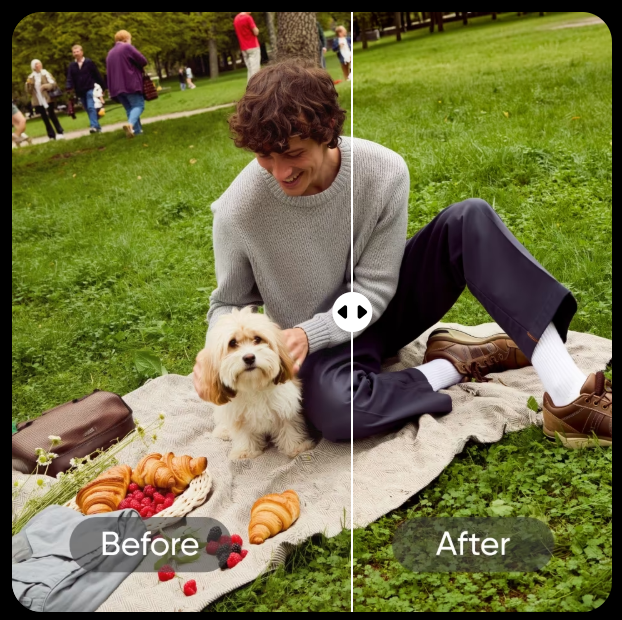
Adjust the brush, remove one distraction, then inspect the reconstructed area before continuing.
A good photo may contain several small distractions: a loose cable, unwanted packaging, litter, background props, temporary signs or minor visual artifacts.
PxBee lets you remove those elements one area at a time while the selected region is reconstructed.
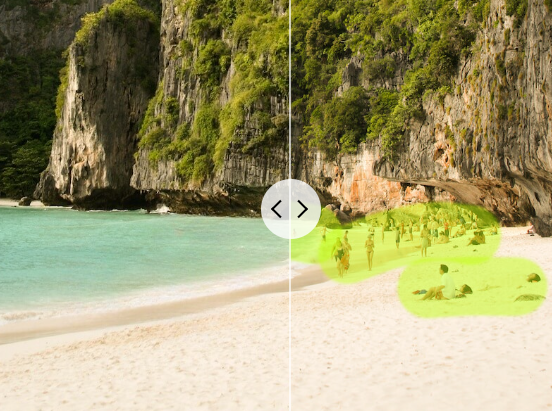
On this page, photo cleanup means removing selected visible content. It does not automatically sharpen, upscale, restore, correct exposure, remove noise, retouch a full portrait or clear the complete background.
If the image needs more clarity, use Photo Enhancer. If it is blurry, try Unblur Image.
The cleanup brush defines what should change. PxBee analyzes nearby textures, colors, lines and objects, then creates replacement pixels inside the selected area.
Choose a JPG, JPEG, PNG or WebP image. Use the original rather than a compressed screenshot when possible.
Match the brush to the distraction. Use a smaller brush around detailed edges and a larger brush for broad, simple areas.
Paint over the complete object and a narrow margin. Include its shadow or reflection only when those should also disappear.
PxBee removes the selected content and generates a reconstruction of the area.
Check repeated textures, straight lines, shadows, reflections and nearby subject details.
Clean one separate item at a time for more control.
Export in an available format and retain the original when accuracy or disclosure matters.
Start with the largest distraction, inspect the surface and switch to a smaller brush for cables or remaining fragments.
Use a tight selection, review repeated patterns and clean any leftover outline separately.
The quality of the selection affects the reconstruction. Protect the product, person or scene details that should remain.
Identify separate objects and decide which shadows or reflections should disappear.
A partial selection can leave fragments, outlines or shadows behind.
Selecting too much asks the tool to generate a larger part of the scene.
Cover complete items with narrow margins and remove unrelated objects in separate passes.
Remove loose cables, dust spots, extra packaging, unwanted props, small support equipment, litter, temporary labels you own and unrelated background objects.
Do not remove product defects customers should see, safety warnings, required labels, included components, controls, ports, material textures or relevant size references.
For full scene replacement, use Background Changer. For an isolated product, use Background Remover.
Remove litter, trash cans, loose bags, temporary signs, distant passersby, small vehicles, wires and unwanted foreground props.
Use Remove Person From Photo when people are the primary cleanup task.
Keep the original when the image also serves a historical, journalistic or factual purpose.
Appropriate targets can include camera equipment, temporary cables, small personal items, movable packaging, temporary signs and loose props.
A cleaned image must not materially misrepresent a property. Preserve the original and disclose significant digital edits where required.
Small distractions can compete with the intended message. Clean up the photo before adding headlines, product details, offers, logos, captions, buttons or legal disclosures.
Removing clutter does not guarantee higher engagement or conversions. Results still depend on the offer, concept, audience and placement.
If a specific new object should appear, use AI Replace instead.

Generated images can contain repeated objects, floating fragments, extra small accessories, broken background items, unwanted marks or inconsistent decorations.
Select only the artifact and inspect the reconstruction carefully. Do not use cleanup to conceal significant errors in a commercial product depiction or a realistic image presented as factual.
Add or rebuild a defined element with AI Generative Fill →Use Person Remover for passersby, tourists and photobombers.
Open Person Remover →02Clean captions, labels or wording you have the right to edit.
Open Text Remover →03Use the focused page for authorized overlay cleanup.
Open Emoji Remover →04Use Magic Eraser for general single-object removal.
Open Magic Eraser →Decluttering, enhancement, replacement and background editing serve different goals.
| Tool | Best used when |
|---|---|
| Cleanup Pictures | Remove several small distractions and visual clutter |
| Magic Eraser | Remove a selected object |
| AI Replace | Generate a specified replacement |
| Photo Enhancer | Improve clarity and overall appearance |
| Unblur Image | Reduce visible blur |
| Background Remover | Isolate the main subject |
| Background Changer | Replace the complete background |
| AI Image Extender | Generate beyond the current image boundary |
Tiles, fences, shelves, windows and text require consistent alignment.
A large object hides more of the original scene and requires more generated reconstruction.
Removing the object without related lighting evidence can leave an incomplete edit.
The tool may need to recreate part of the main subject that was never visible.
Glass, smoke, water and sheer fabric combine foreground and background information.
Compression and blur reduce the useful texture available around the selection.
Source quality and selection size directly affect the completed region.
Improve a soft source with Photo Enhancer →Avoid screenshots or repeatedly compressed copies.
Separate cleanup passes provide clearer visual context.
Remove the main clutter first, then clear smaller remaining artifacts.
Cover the complete item without selecting a broad unrelated area.
Small previews can conceal warped patterns and texture repetition.
Confirm that relevant subject details have not changed.
If clutter covers an important area, another source may be more credible than repeated reconstruction.
Only edit images you own or have permission to modify. Watermarks normally communicate ownership or licensing. Use Watermark Remover only when you own the image, licensed an unwatermarked version or received explicit permission.
Read AI Image Editing Limitations →Upload your image, remove one distraction at a time and inspect the reconstructed areas before downloading.
Keep the original whenever accuracy or disclosure matters.