

JPG converted to PNG
The original visible background can remain.
Turn a product photo, portrait, logo or graphic into a reusable PNG image. Upload your file, remove the visible background and download the isolated subject with transparency.
OriginalTransparent PNG
A transparent PNG can be placed on different backgrounds without bringing the original white, black or colored box with it.
PxBee’s Transparent Image Maker identifies the main subject, removes the surrounding background and prepares the result for PNG download. Use it for websites, online stores, presentations, marketing designs and personal projects.
PxBee’s PNG Maker is designed to create PNG images with transparent backgrounds. It does more than rename a file or change its extension.
When you upload an image, PxBee analyzes the foreground and background, isolates the main subject and turns the surrounding area transparent. The result can then be exported as a PNG and placed over another design.
Explore the general Background Remover →The original visible background can remain.
The cleared area is stored as transparency.
Simply converting a JPG file to PNG does not automatically remove its background. A white background in the JPG may remain white after conversion. To create a genuinely transparent PNG, the visible background must first be removed and the cleared area must be stored as transparency.
Choose a JPG, JPEG, PNG or WebP file from your device. A clear original with visible subject edges usually gives the tool more useful information.
PxBee identifies the likely foreground subject and clears the surrounding background.
Review the image on the checkerboard preview. Inspect hair, fur, shadows, small openings and transparent materials.
Export the isolated subject as a PNG image. You can then add it to another background, document, website or design.
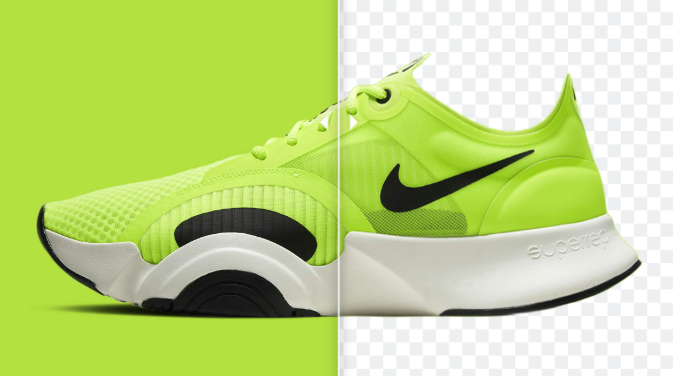
PNG can store transparency, allowing the visible subject to be composited over another background.
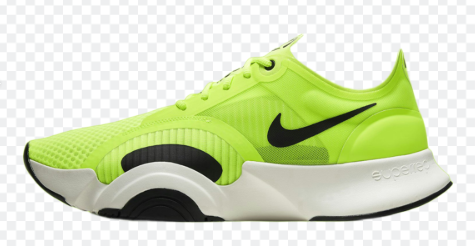
A transparent PNG is not tied to the scene or color behind the original subject. Use the same cutout on a website, banner, presentation or social post.
Logos and graphics with an opaque white background can look out of place on colored layouts. Transparency lets the surrounding design show through.
Create a transparent subject once and reuse it in multiple campaigns or layouts without removing the background each time.
PNG uses lossless compression and is useful when transparency or precise reproduction matters. Detailed photographic PNG files can be larger than JPG files. Read the MDN image-format guide ↗.
Each example pairs a transparent-use case with the most relevant specialist workflow.
Remove the original scene from a product photo and create a reusable cutout for store layouts, ads, category pages and promotional graphics.
A transparent product PNG is not automatically compliant with every marketplace’s primary-image rules. Check the current platform requirements.Remove the white or colored box around a logo so it can sit naturally on websites, slides, packaging previews and branded graphics.
Use Logo Background Remover →Read the logo background removal guide →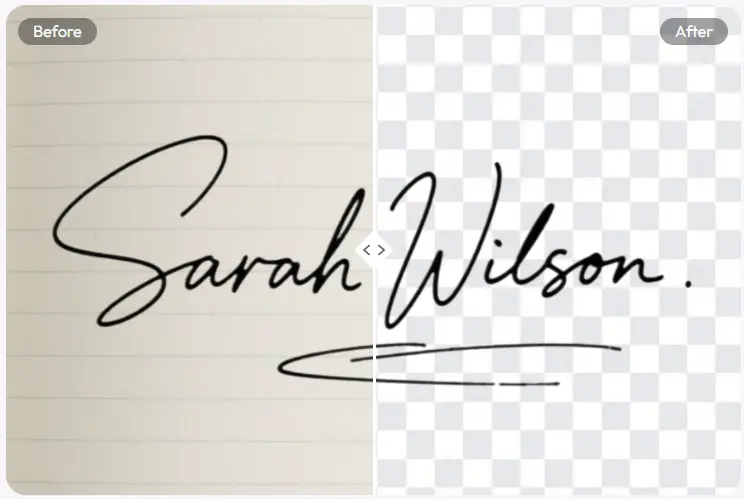
Separate handwriting from paper and create a transparent signature image for an appropriate digital document workflow.
Use Signature Background Remover →Only use a signature when you have permission and understand the document’s signing requirements.
Create a transparent person cutout for profile graphics, team pages, thumbnails, event materials or presentation slides.

Turn a person, pet or object into a reusable image for messaging graphics, collages, thumbnails and social posts.

Remove distracting rectangles around images and place the visible subject naturally on different page or slide colors.
Editors commonly use a gray-and-white checkerboard to represent transparent areas. The checkerboard is not normally part of the exported image.
Preview the result on both a light and dark background. A light preview reveals dark fringes; a dark preview reveals pale halos.
Open the downloaded PNG in a transparency-aware editor or place it over a colored slide. Some basic image viewers display transparent areas as white even when the file remains transparent.
Screenshots, messaging-app downloads and repeatedly compressed images may have blurred or blocky edges. Use the original file whenever possible.
A subject that strongly contrasts with the background is usually easier to isolate. Similar foreground and background colors can make automatic separation more difficult.
PNG cannot create missing detail. If the source is small or blurry, try the Photo Enhancer before or after creating the cutout, depending on which order produces the cleaner edge. Try the Photo Enhancer.
A soft shadow can help a product feel grounded, but it may limit where the PNG can be reused. Decide whether to retain the shadow or isolate only the object.
Automatic background removal can require extra checking around fine or translucent details. Do not assume that every image will produce the same result.
For realistic expectations around fine edges and complex materials, read AI image editing limitations.
This page is specifically intended to create a transparent PNG, not replace every conversion or optimization workflow.
| Format | Transparency | Best suited to |
|---|---|---|
| PNG | Yes | Logos, cutouts, UI graphics and reusable transparent assets |
| JPG/JPEG | No | Photographs where transparency is unnecessary |
| WebP | Yes | Web images requiring transparency with potentially smaller files |
PNG is a good choice when broad compatibility and transparent output matter. For large photographic website images, a properly optimized WebP may provide a smaller file.
Once the background is clear, choose only the next tool your composition needs.
For the broader clear-background workflow, visit the Transparent Background Maker or learn how to make an image background transparent. Need to remove a black background? Use the focused tool.
Upload a photo or graphic, remove its background and turn the subject into a reusable PNG image.
JPG, JPEG, PNG and WebP · Maximum 20 MB