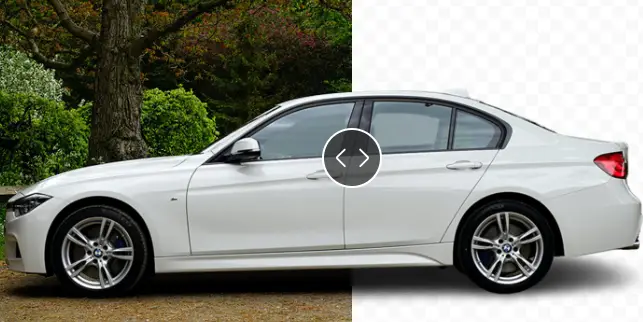
Background tools
Remove or change a photo background
Separate the main subject from its surroundings, download it with transparency, apply a solid color or create a new scene.
Edit photos without complicated software. Remove backgrounds, enhance quality, clean unwanted objects, expand images and make prompt-guided changes in one easy workspace.
Choose a PNG, JPG, GIF or WebP file
Only edit an image you own or have permission to use.PxBee is a free AI photo editor for everyday tasks. Instead of working through complex layers, masks and manual selections, open the focused tool that matches the result you need.
Clean a photobomber from a travel photo, improve a soft product shot, expand a tight crop or replace an object with a written prompt. Each workflow provides a shorter path from the original photo to a usable result.
Choose an AI editing tool →Every feature below links to its dedicated editor. Videos are muted and play only while visible to protect page performance.
Separate the main subject from its surroundings, download it with transparency, apply a solid color or create a new scene.
Swap the original setting for a clean color, lifestyle scene or generated background that fits the image.
Change a photo background →Give the subject more visual focus by applying a background treatment that supports the composition.
Explore background changes →Brush over a passerby, sign, caption or distracting object. PxBee examines the surrounding pixels and reconstructs the selected space.
Small distractions against a consistent background generally provide the cleanest reconstruction.
Clean Up a PhotoAnalyze visible detail, sharpness, lighting and noise to create a clearer version for product listings, portraits, profiles and presentations.
Enhance My Photo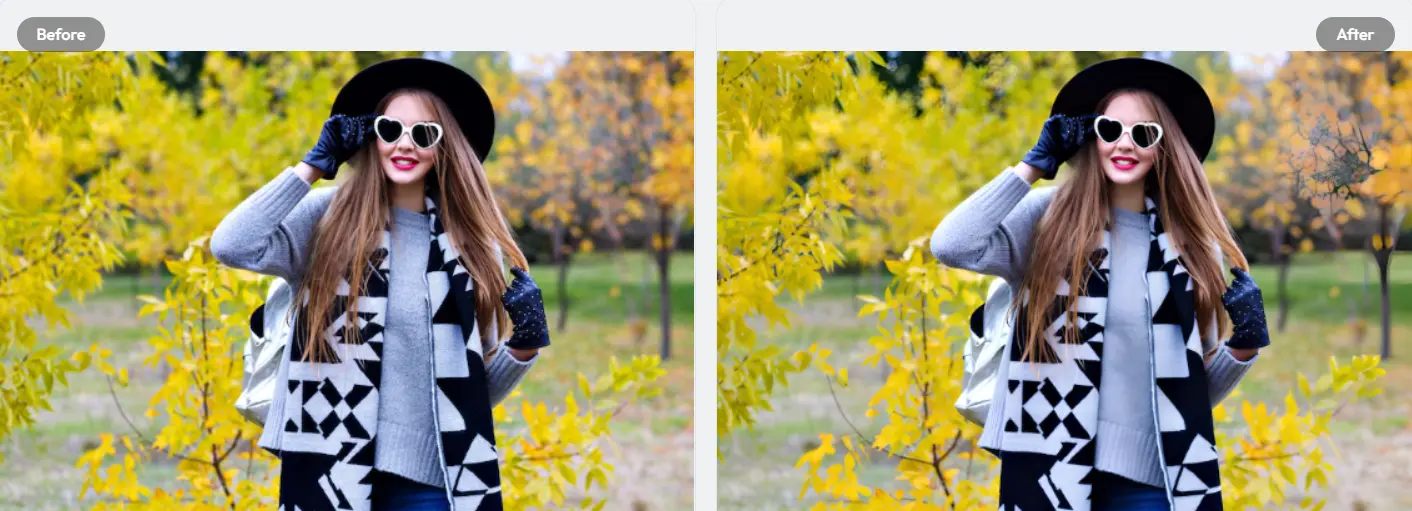 AI Photo Enhancer
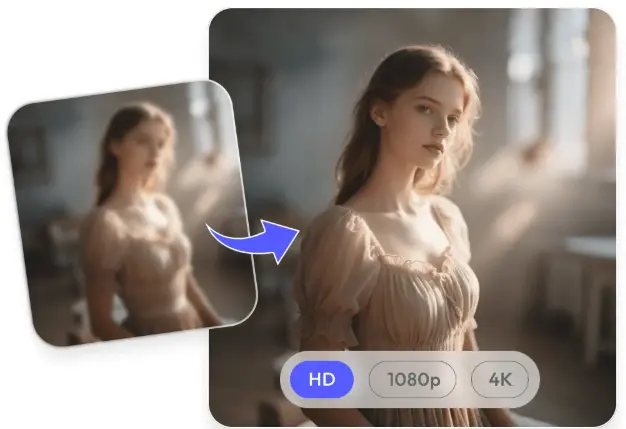
Prepare a clearer, higher-definition version for larger displays and polished visual content.
Convert a photo to HD →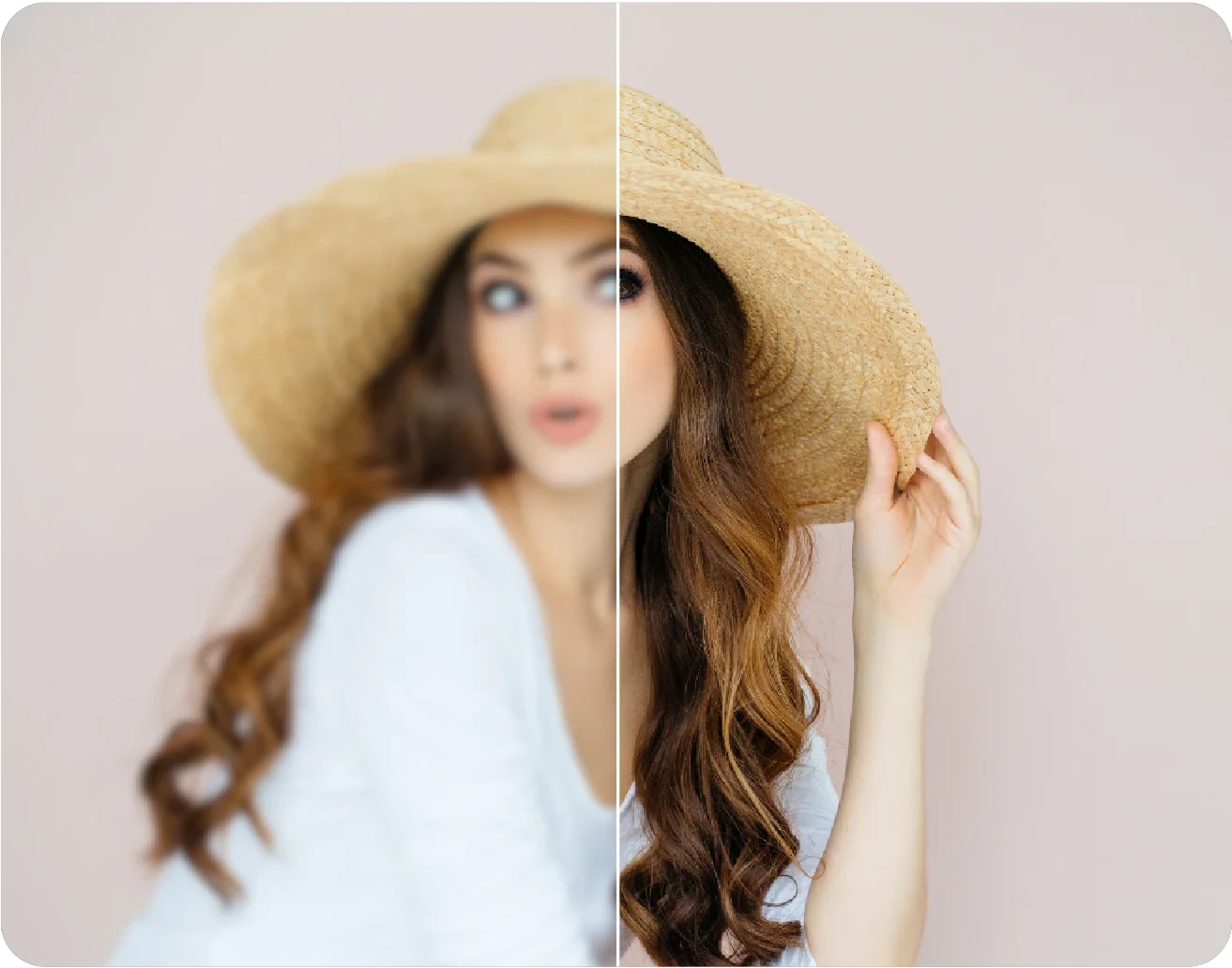
Improve visible focus and clarity in photos affected by softness or light blur.
Unblur an image →AI enhancement can improve visible information, but it cannot always recover details that were never captured. Start with the highest-quality source available and review the result at full size.
Create a wider product image, taller social post or more breathing room around a portrait. AI outpainting generates new visual content beyond the original frame.
Review hands, text, repeating patterns and partially visible details carefully before professional use.
Select the area you want to change, describe the new content and generate a replacement that considers the surrounding image.
“Add a small round oak table with soft natural shadows, matching the room’s warm afternoon lighting.”
Preview a different hairstyle or color direction before making a real-world change.
Try a new hairstyle →Change a selected product, clothing or design color while keeping surrounding detail in view.
Replace an image color →Explore an outfit concept while reviewing the generated fit, fabric and edge details.
Change clothes in a photo →Use these tools only on images you own or are authorized to modify. Never remove ownership or attribution marks to misrepresent content.
Clean an authorized overlay from your own image and review the reconstructed region carefully.
Remove an authorized watermark →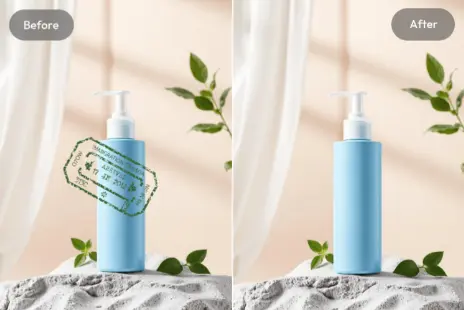
Remove a stamp from an image you control while retaining the visible product and background.
Open Photo Stamp Remover →No single image process is ideal for every task. PxBee applies the workflow that fits the requested change.
Separates the main subject from surrounding pixels for transparent exports and background changes.
Examines nearby pixels and creates content intended to blend with the scene.
Analyzes visible edges, lighting, color and noise to improve practical clarity.
Creates new content inside a selected portion of an existing image.
Builds content outside the original frame for a new composition or ratio.
Uses written instructions to direct what should be added or changed.
Keep the task focused and inspect every output before using it.
Start with the change you want: remove, clean, enhance, expand or replace.
Select a supported file from your phone, tablet or computer.
Choose a ratio, brush an area, select a background or write a prompt.
Examine edges, faces, text, shadows and generated details.
Save the result or open another tool for the next adjustment.
Create transparent cutouts, white backgrounds and more flexible product compositions.
Create a white background →Extend a photo, clean distractions or create more room for a caption.
Adapt an image ratio →Prepare transparent graphics and authorized signature assets for documents and layouts.
Extract a signature →Clean the scene, improve clarity or explore a different hairstyle or outfit concept.
Try a hairstyle →Results can be less predictable with extremely low resolution, heavy motion blur, missing details, transparent objects, complex hair, distorted text, repeating geometry, strong shadows or overlapping subjects.
PxBee is an editing assistant—not proof that an image is authentic or an exact record of an event.
Read AI editing limitationsCopyright basics: U.S. Copyright Office ↗Use focused tutorials when you want more detail before opening an editor.
Remove a background, clean an unwanted object, enhance image quality, extend the canvas or generate a new element—then review the result before publishing.
Only edit content you have the right to use.Checking your image and opening the editor…
8 seconds