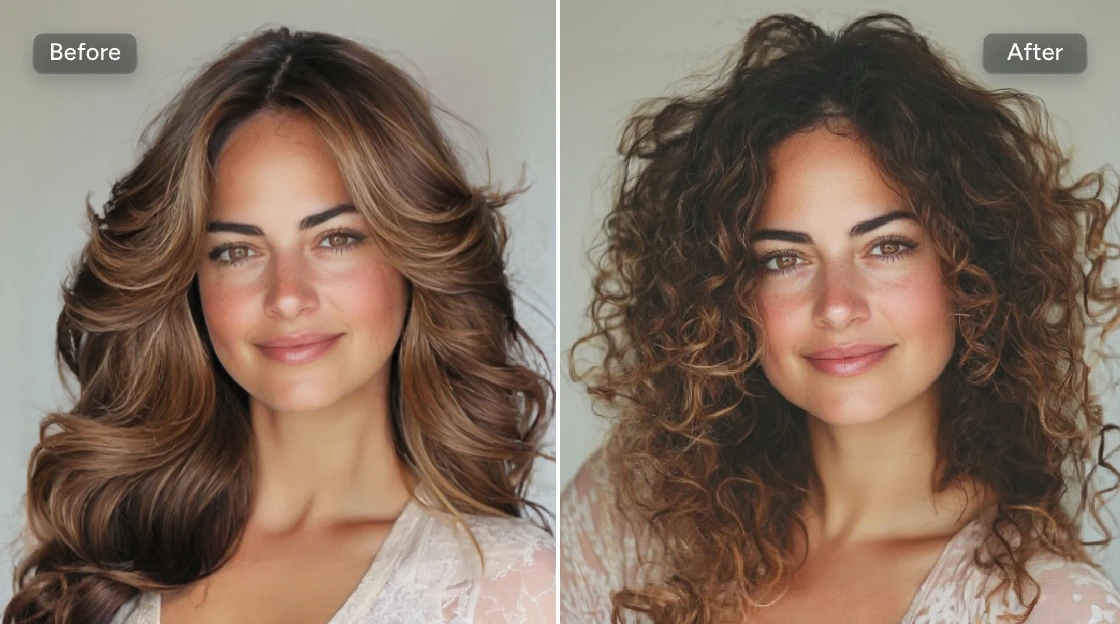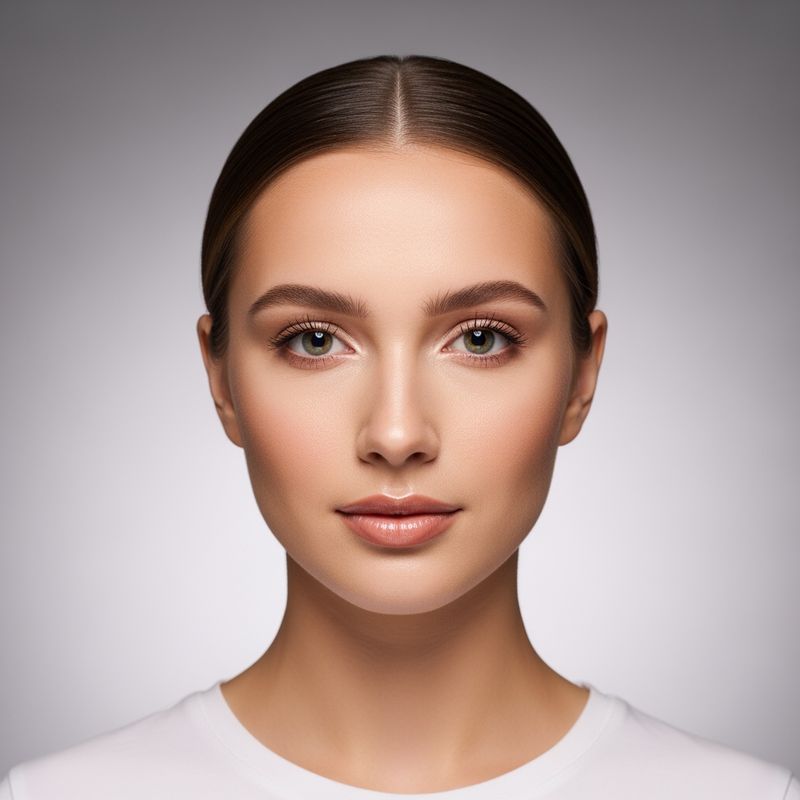
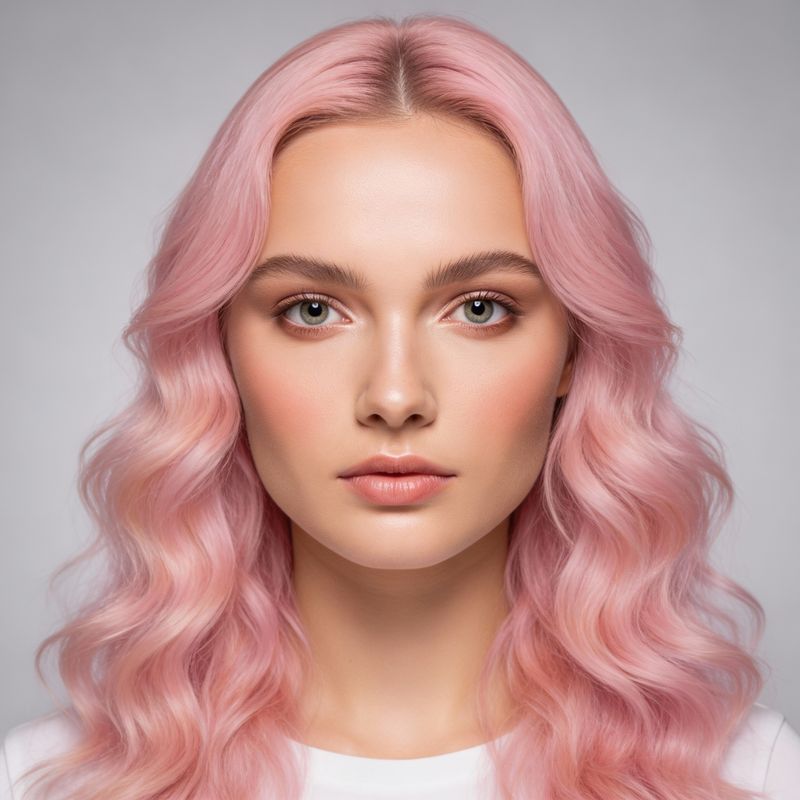
Use a front-facing, well-lit portrait, describe one hairstyle change at a time, keep the selection close to the hair and review the hairline, ears, shoulders, shadows and facial identity before saving.
Changing hair in a photo uses generative image editing to replace the visible hairstyle with a newly created cut, length, texture, fringe, parting, or color.
A virtual hairstyle preview can help users:
Explore a major haircut
Compare short and long styles
Test bangs before cutting
Preview curls, waves, or straight hair
Explore traditionally masculine or feminine cuts
Try a new parting
Test natural or creative colors
Prepare a reference for a salon consultation
The preview is an AI-generated interpretation. It is not a guarantee of the real haircut or color result.
CTA: Change My Hairstyle
[Place the Hairstyle Changer editor or a prominent preview here]
Before You Start: Choose a Good Portrait
The quality and composition of the source photo influence the result.
Use a portrait with:
One clearly visible person
The complete head inside the frame
A front-facing or slight three-quarter angle
Even, natural lighting
A clear hairline
Sufficient resolution
A simple background
Minimal obstruction
Avoid portraits with:
Hats
Hoods
Headphones
Hands covering the hair
Heavy motion blur
Extreme side angles
Strong colored lighting
Hair hidden outside the frame
Several people
Very dark hair against a dark background
Complex accessories around the head
Use your own portrait or obtain permission from the person shown.
How to Change Hair in a Photo Online
Step 1: Open PxBee Hairstyle Changer AI
Go to the Hairstyle Changer AI.
The current editor supports:
JPG
JPEG
PNG
WebP
Step 2: Upload your portrait
Choose the clearest original available.
The full head, forehead, ears, neck, and shoulders should be visible when possible. These areas help establish the new hairstyle’s boundaries.
Step 3: Brush over the current hair
Select:
Hairline
Top
Sides
Back areas visible in the photo
Existing bangs
Visible ends
Use a smaller brush around:
Forehead
Ears
Eyes
Eyebrows
Glasses
Neck
Shoulders
Jewelry
Background edges
Step 4: Allow space for the new length
If the requested hairstyle is longer or fuller than the current one, include enough surrounding space.
For example:
A pixie-to-bob change needs space around the ears and jaw.
A short-to-shoulder-length change needs space around the neck and
shoulders.
Long waves need visible canvas below the current hair.
High-volume curls need additional space around the top and sides.
If the original crop is too tight, expand the canvas first with the AI Image Extender.
Step 5: Write a detailed hairstyle prompt
A useful prompt contains:
Length
Cut
Texture
Parting
Fringe or bangs
Volume
Color
Finish
Example:
Shoulder-length layered haircut, soft natural waves, center part, curtain bangs, dark chestnut brown, realistic volume.
Step 6: Generate the hairstyle
Select Generate.
AI creates a new interpretation based on the portrait, selected region, and prompt.
Results may differ in:
Length
Curl pattern
Hairline
Volume
Parting
Fringe
Color
Shine
Texture
Face-framing pieces
Step 7: Inspect the portrait
Zoom in and check:
Face consistency
Hairline shape
Forehead
Ears
Eyebrows
Eyes
Glasses
Earrings
Neck
Shoulders
Clothing
Background
Light direction
Hair texture
Step 8: Download or revise
Download the preferred concept or change the prompt to explore another style.
CTA: Change Hair With PxBee
Hairstyle Prompts You Can Copy
Medium layered hair
Medium-length layered haircut, soft natural waves, center part, dark chestnut brown, realistic volume and texture.
Curtain bangs
Shoulder-length hair with soft curtain bangs, subtle face-framing layers, warm brown color, natural finish.
Short pixie cut
Short layered pixie cut, side-swept fringe, dark auburn hair, soft texture, natural hairline.
Curly bob
Chin-length curly bob, defined soft curls, side part, deep brown color, realistic volume and shadows.
Long waves
Long layered hairstyle, loose natural waves, middle part, rich black color, soft shine, realistic texture.
Textured crop
Short textured crop, subtle fringe, tapered sides, natural black hair, defined but realistic texture.
Taper fade
Clean low taper fade, short textured top, natural dark brown hair, realistic hairline and side blending.
Pompadour
Classic short pompadour, controlled volume at the front, tapered sides, dark brown hair, neat natural finish.
Sleek bob
Jaw-length sleek bob, straight texture, center part, deep black hair, subtle natural shine.
Soft curls
Shoulder-length layered curls, soft defined curl pattern, side part, medium brown color, natural volume.
Haircut and color combination
Long layered waves, center part, subtle copper brown hair, soft face-framing pieces, natural shine.
Use these prompts as starting points. Adjust the length, texture, color, fringe, parting, and volume.
How to Change Only Hair Color
If the current haircut should remain unchanged, use the AI Color Replacer instead of generating an entirely new hairstyle.
To recolor hair:
Upload a clear portrait.
Brush over the complete visible hair.
Keep the face and background outside the selection.
Describe the new color and finish.
Generate the result.
Check highlights, shadows, hairline, and skin boundaries.
Example color prompts:
deep natural black
dark chocolate brown
warm chestnut
soft copper brown
ash blonde
honey blonde
silver gray
muted burgundy
subtle rose gold
A virtual hair color does not predict the exact result of dyeing. Real outcomes depend on:
Starting color
Previous dye
Hair condition
Porosity
Bleaching
Developer strength
Hair texture
Salon technique
Lighting
Consult a qualified colorist for a real transformation.
How to Preview a Buzz Cut
For a focused buzz-cut workflow, use the AI Buzz Cut Filter.
A clear input should show:
Full head shape
Hairline
Ears
Forehead
Neck
Even lighting
A buzz-cut preview can suggest a general appearance, but it may not show the exact natural hairline, scalp visibility, density, scars, or growth pattern.
Short, Medium, or Long Hair?
Short hair
Short styles include:
Pixie cuts
Crops
Crew cuts
Fades
Buzz cuts
Short curls
Sleek short hair
Short hairstyles make the hairline and head shape more visible. AI may estimate these areas.
Medium-length hair
Medium styles include:
Bobs
Lobs
Curtain bangs
Shoulder-length layers
Medium curls
Center parts
Side parts
These styles are useful for testing changes without requiring a large amount of extra canvas.
Long hair
Long styles include:
Long layers
Straight hair
Loose waves
Defined curls
Face-framing pieces
Long center-part styles
The source image needs sufficient space around the neck and shoulders. Use the AI Image Extender if the portrait is cropped too closely.
Hair Texture and AI Previews
AI can create visual versions of:
Straight hair
Wavy hair
Curly hair
Coily hair
Fine texture
Thick volume
Sleek styling
Tousled texture
However, a generated texture cannot predict how a person’s real hair will respond to a cut or styling method.
Real hair behavior depends on:
Natural curl pattern
Density
Strand thickness
Porosity
Growth direction
Humidity
Products
Heat styling
Damage
Maintenance routine
Use inclusive, texture-specific prompts rather than treating one hair type as the default.
From AI Preview to Salon Consultation
Use the generated image as a visual starting point.
Discuss these details with a barber or stylist:
Current hair length
Natural texture
Density
Hairline
Growth pattern
Cowlicks
Damage or previous coloring
Daily styling time
Required products
Heat styling
Trim frequency
Color maintenance
What can be achieved in one appointment
The professional may adjust the reference to make it achievable and maintainable.
Prepare the Portrait Background
A clean background can make it easier to evaluate the hairstyle.
Use:
-
to isolate the portrait.
[Transparent Background
Maker](https://chatgpt.com/background-remover/transparent/) to create a transparent cutout.
-
for a reusable transparent portrait.
-
to add a simple studio or lifestyle scene.
[AI Background
Generator](https://chatgpt.com/background-remover/ai-background-generator/) to create a new background.
[White Background
Remover](https://chatgpt.com/background-remover/white/) when cleaning a white source backdrop.
[Black Background
Remover](https://chatgpt.com/background-remover/remove-black-background/) when removing dark surroundings.
Choose a replacement whose lighting agrees with the portrait.
Other PxBee Background Tools
For separate assets:
Use the [Logo Background
Remover](https://chatgpt.com/background-remover/logo/) for authorized raster logos.
Use the [Signature Background
Remover](https://chatgpt.com/background-remover/signature/) for a signature you own or have permission to process.
These tools are not part of hairstyle generation and should appear only as related PxBee utilities.
Common Hair-Changing Problems
The face changed
The hair selection may include too much of the face.
Try:
Using a smaller brush near the forehead.
Keeping eyes and eyebrows outside the mask.
Choosing a clearer portrait.
Simplifying the prompt.
Generating another version.
The hairline looks unnatural
AI may estimate a new hairline, especially when changing from long hair to a very short cut.
Compare the result with the original and treat it as a concept, not a prediction.
An ear disappeared
Long or wide hair selections may cover ears. Refine the mask and specify whether the ears should remain visible.
Hair merges into the background
This is common when the new hair and background have similar colors.
Use a simple contrasting background or remove the original background before the final composition.
The hairstyle is cut off
The source image may not contain enough canvas. Extend the image before requesting longer or fuller hair.
Bangs cover the eyes
Specify the fringe length and placement.
Example:
Soft curtain bangs ending beside the eyebrows, eyes fully visible.
Curls look inconsistent
Specify the approximate curl size, length, volume, and shape. Generate several versions.
Hair color spills onto skin
Use a smaller selection around the hairline, ears, neck, and face.
Glasses or earrings change
Accessories near the hair can be regenerated. Review them carefully or choose a portrait without complicated accessories.
Clothing changes near the shoulders
Long generated hair may affect shoulder and collar areas. Inspect these regions and use a professional editor if accuracy matters.
Consent, Authenticity, and Responsible Use
Only edit:
Your own portrait;
A photo whose subject gave permission; and
An image you have the right to modify.
Do not use hairstyle editing to:
Harass or humiliate someone
Falsely impersonate another person
Create deceptive profile images
Alter someone’s appearance without permission
Misrepresent professional results
Claim a generated haircut is an actual service result
Create misleading before-and-after advertising
For salon marketing, label AI-generated hairstyle concepts clearly and never present them as real client results.
Final Hair-Change Checklist
Before downloading, confirm:
The person gave permission.
The source image is authorized.
The face remains consistent.
The hairline looks plausible.
Eyes and eyebrows are unchanged.
Ears and accessories remain accurate.
Hair does not merge into the background.
The neck and shoulders remain natural.
Texture is consistent.
Lighting and shadows match.
The output is treated as a concept.
The original portrait is safely preserved.
The edit is disclosed where viewers could be misled.
Change Hair in Your Photo With PxBee
Upload your own portrait, select the current hair, describe the cut, length, texture, or color, and create a virtual hairstyle preview.
Primary CTA: Change My Hairstyle Free