Pixel dimensions
Width and height, such as 800 × 600 or 3840 × 2160.
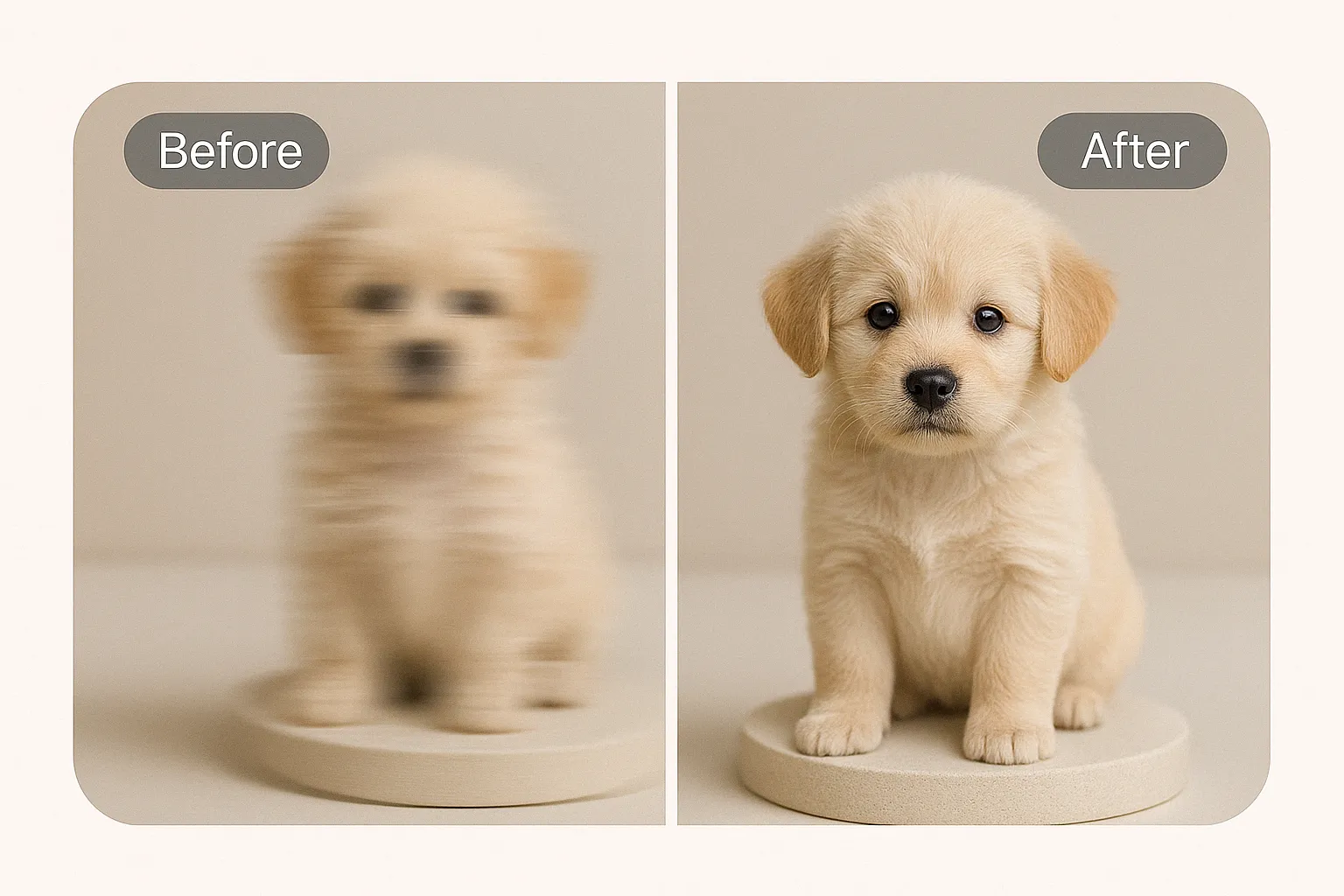
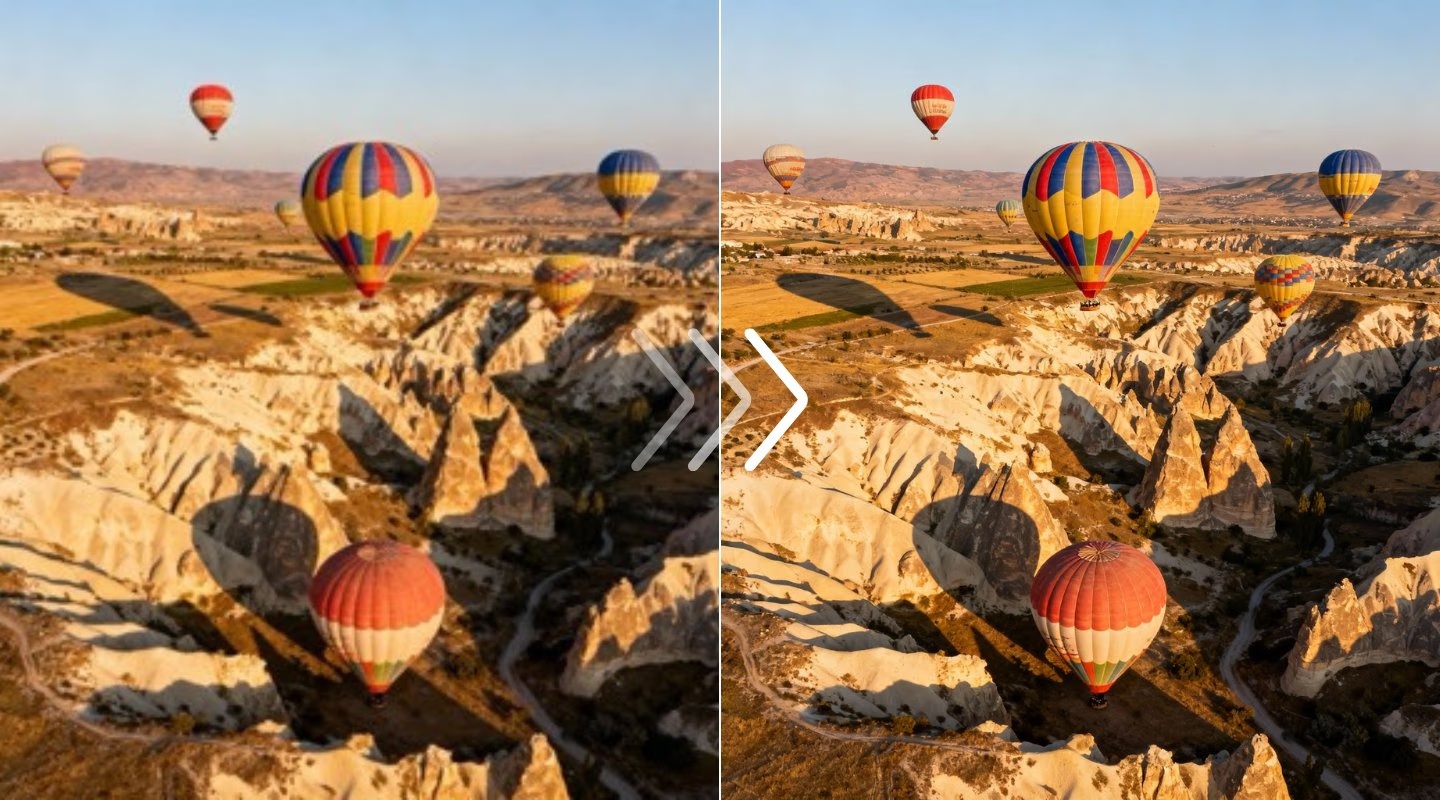
Drag to compare the low-resolution source and HD result.
Upload a small image and create a larger, enhanced version with PxBee’s AI HD Photo Converter. Compare the original and output before downloading.
AI upscaling estimates new pixels. It cannot reliably recover every detail missing from the source.
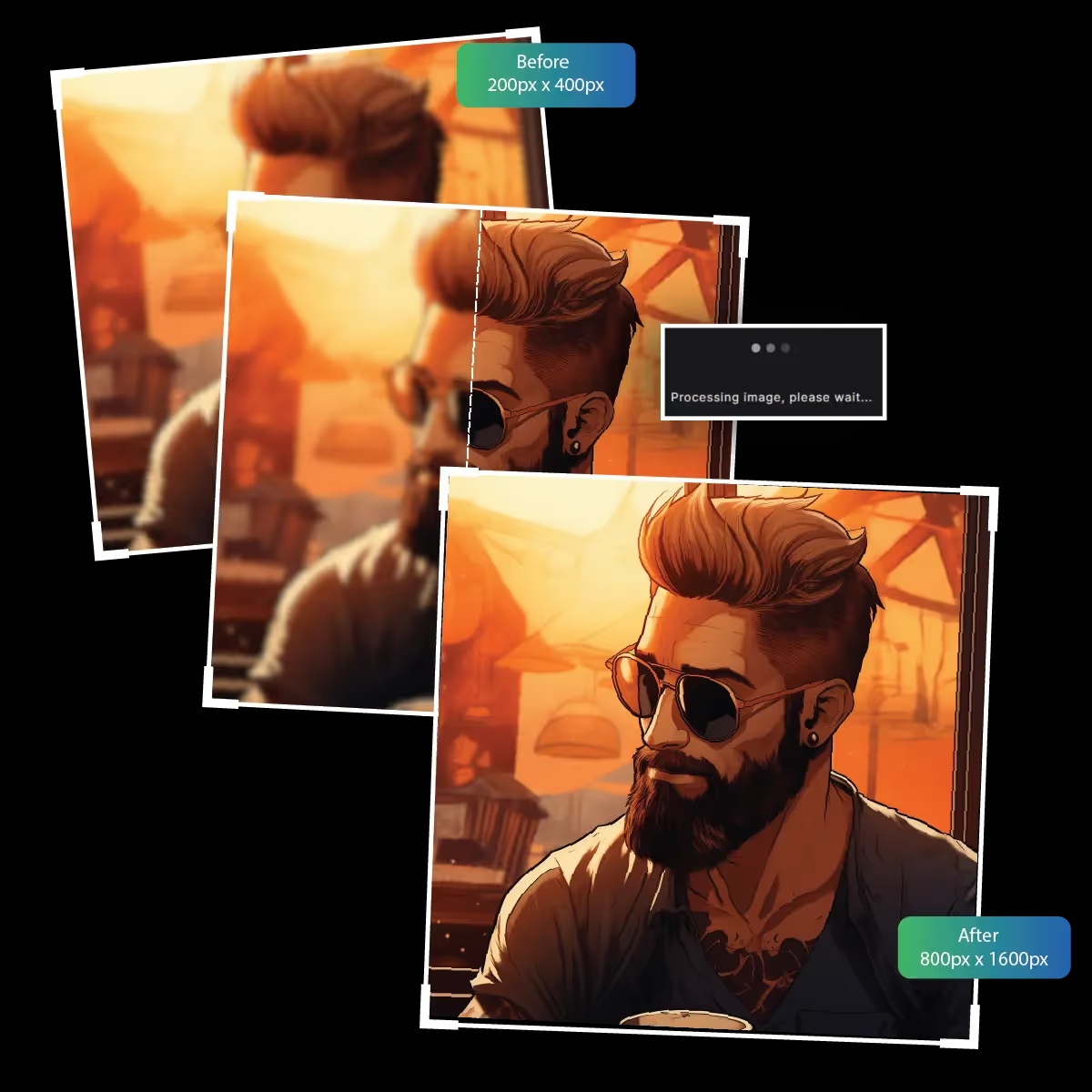
Basic resizing can enlarge an image while leaving it soft or blocky. PxBee uses AI-assisted upscaling to create a larger pixel grid and estimate additional visual detail.
Depending on the source, the output may improve:
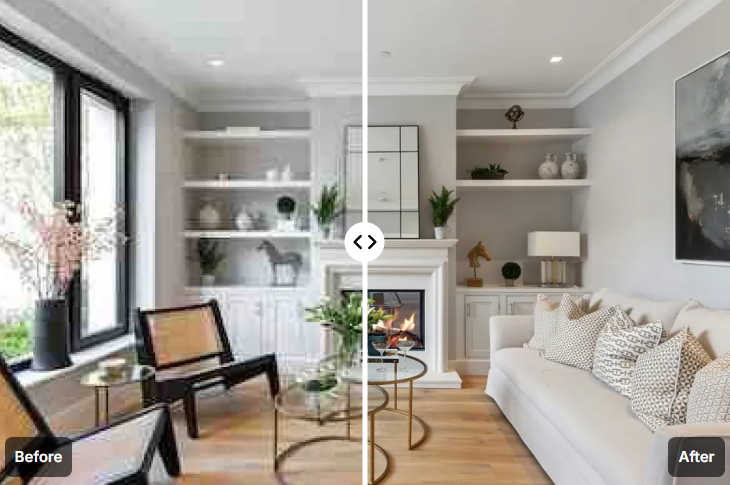
An HD Photo Converter transforms a smaller image into a higher-resolution output. It may combine image upscaling, detail estimation, sharpening, noise reduction, compression cleanup and edge refinement.
Changing a filename from JPG to PNG does not create more captured detail. This workflow increases image dimensions and enhances appearance.
When a source is very small, blurred or compressed, AI estimates what extra pixels could look like. Some output details may be generated rather than recovered.
Choose the highest-quality original available.
Use an available resolution or scale option and check its exact dimensions.
PxBee creates a larger pixel grid and estimates additional visual detail.
Inspect faces, text, labels, patterns, edges and compressed areas.
Check original and output dimensions, format and file size.
Export the preferred version and retain the original source.
Upload, select output size, process, compare, confirm dimensions and download.
These labels originated mainly from displays and video. A portrait reverses landscape dimensions, while square images use different values. PxBee should always show the actual output width and height.
| Label | Common landscape dimensions | Important note |
|---|---|---|
| HD | 1280 × 720 | Often called 720p |
| Full HD | 1920 × 1080 | Commonly called 1080p |
| 4K UHD | 3840 × 2160 | Common consumer 4K dimensions |
It can improve usability and apparent detail, but larger dimensions alone do not guarantee better quality.
Interpolation creates new pixels between existing pixels. It can enlarge an image without adding meaningful detail.
AI predicts textures, edges and details. The result may look more convincing, but predicted details are not necessarily accurate.
Results depend on original dimensions, focus, motion blur, noise, compression, lighting, subject size, texture complexity, previous editing and prior exports. A 100 × 100 thumbnail cannot reliably become a detailed large-format photograph.
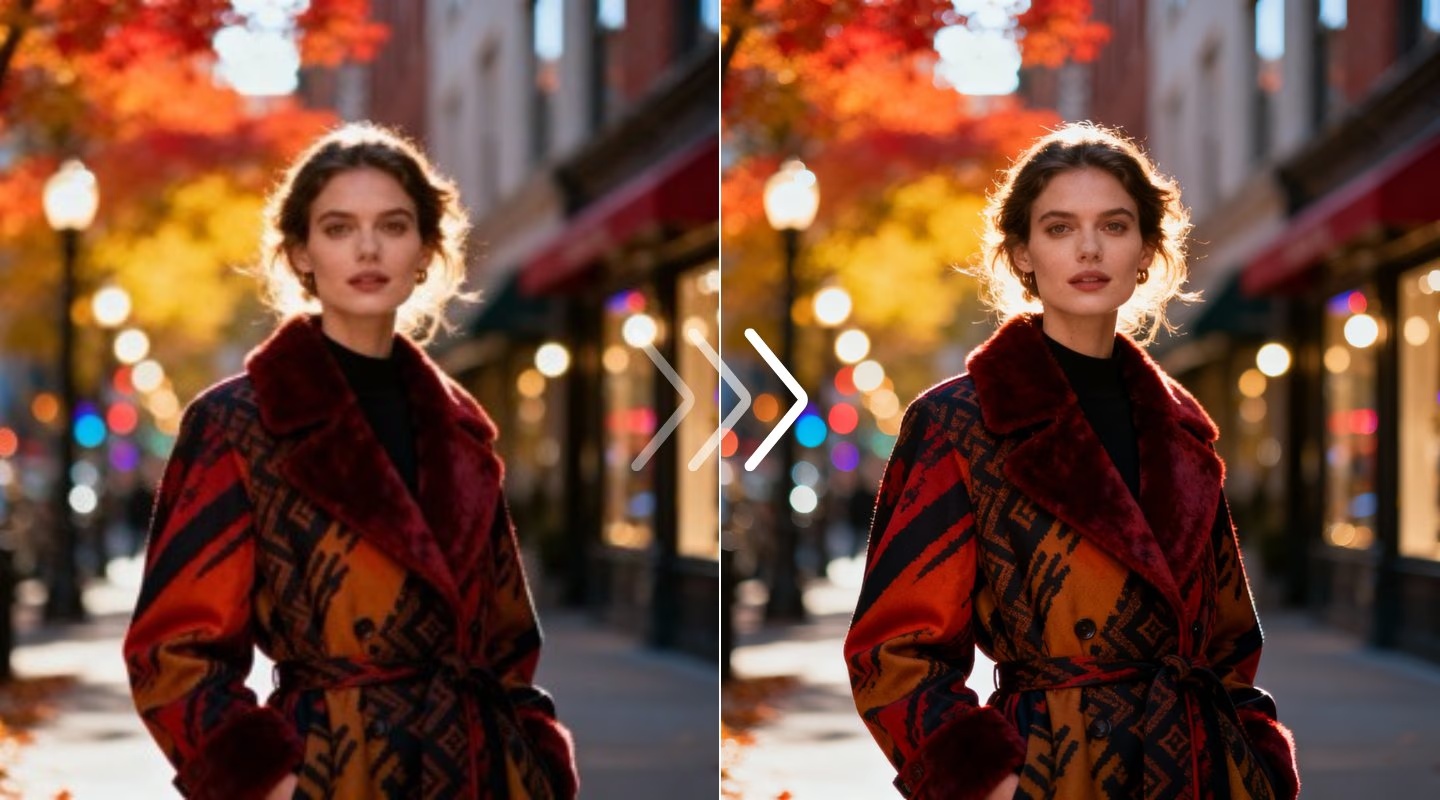
Width and height, such as 800 × 600 or 3840 × 2160.
Storage used by a file. A larger file is not automatically sharper.
Information visible in faces, textures, labels, edges and objects.
AI can increase dimensions and apparent detail. It cannot guarantee generated details match the real-world subject.
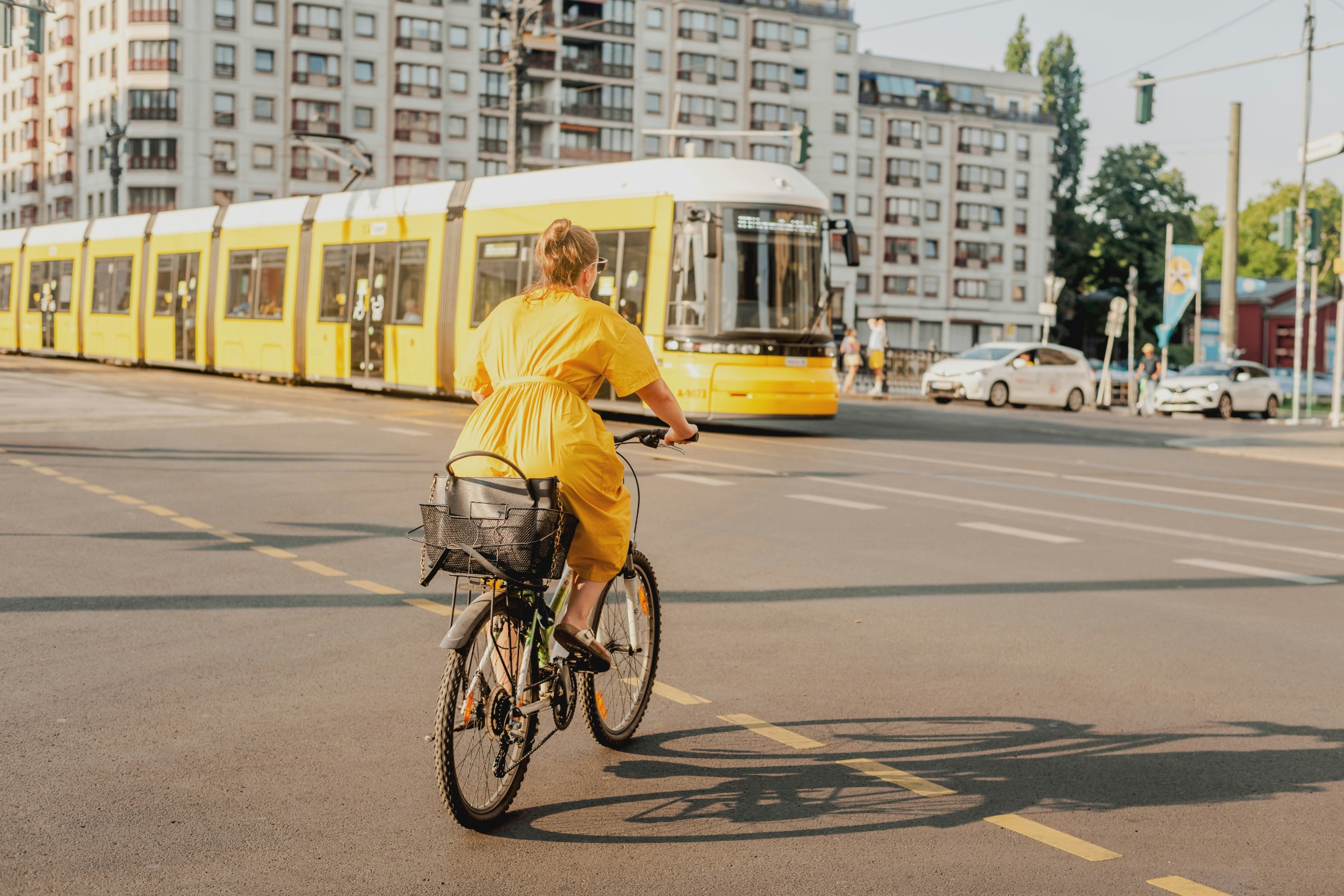
Confirm platform dimensions, crop to the intended ratio, use a web-suitable format, inspect mobile rendering and avoid needlessly oversized files that slow pages.
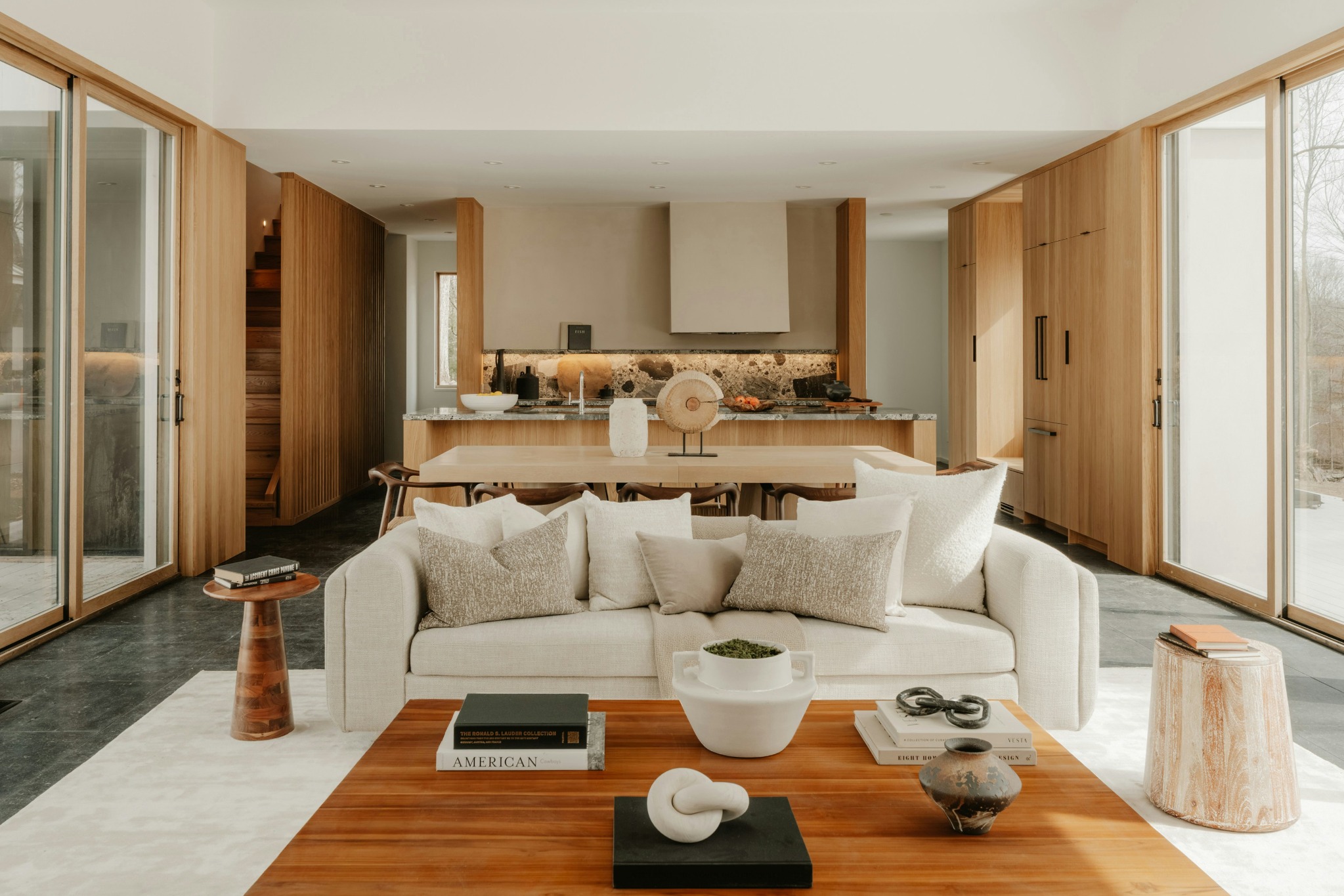
Inspect brand names, packaging text, colors, textures, controls, dimensions, accessories and defects. Do not publish output that changes material details.
Use Background Remover, AI Background Generator or Background Changer for separate background tasks.
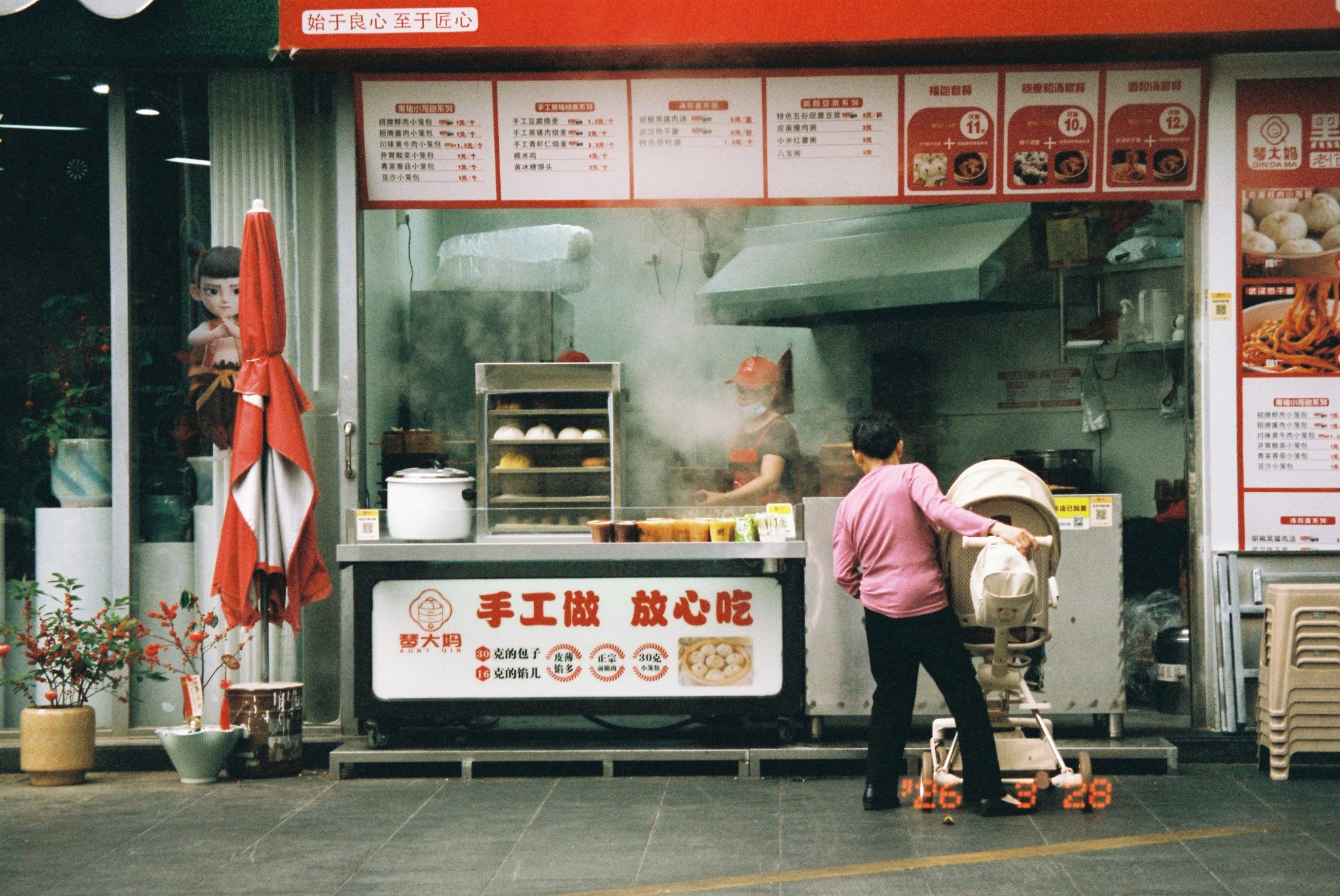
Upscaling is not full restoration. It may not repair tears, scratches, missing corners, fading, motion blur, missed focus, lost identity or unreadable writing.
Use Photo Enhancer, Unblur Image or Unpixelate Image for focused problems.
An HD or 4K label does not guarantee print quality. Consider dimensions, print size, pixels per inch, viewing distance, artifacts, printer, paper, color profile and sharpening. Order a proof for important work.
| Image dimensions | Approximate print size |
|---|---|
| 1280 × 720 | 4.3 × 2.4 inches |
| 1920 × 1080 | 6.4 × 3.6 inches |
| 3840 × 2160 | 12.8 × 7.2 inches |
Larger prints may look acceptable from farther away. Print a proof before an expensive production run.
Inspect actual pixels, not only a fitted preview.
These quickly reveal invented or distorted detail.
AI can create wrong letters, labels, plates and signs.
Check fabric, bricks, tiles, fences, windows and textures.
Excessive sharpening creates bright or dark outlines.
Confirm the result has not materially changed the subject.
Display original width and height, output width and height, scale multiplier, output format, file size and whether metadata is retained.
Use the camera file or highest-resolution export, not a thumbnail.
Pre-enlarging may add unhelpful interpolation.
Moderate enlargement is often more believable than an extreme conversion.
Multiple passes can exaggerate textures and facial artifacts.
The original remains the most reliable record of real details.
Generate a larger pixel grid from a low-resolution source.
Choose clearly stated output dimensions when available.
Create plausible additional edge and texture information.
Improve apparent clarity while checking for smoothing and halos.
Inspect original and processed versions with a draggable control.
Review original and converted dimensions before download.
Use JPG, JPEG, PNG, HEIF, HEIC and WebP.
Upload, process, compare and export without desktop software.
Output may contain invented facial detail, incorrect text, altered labels, plastic-looking skin, oversharpened edges, repeated textures, color shifts, smoothed detail, false reflections or changed small objects.
Do not use an AI-upscaled image as the sole basis for medical, legal, forensic, identification, scientific, insurance or investigative conclusions.
Read AI Image Editing LimitationsUpload your low-resolution photo, inspect the AI-generated details and confirm the output dimensions before downloading.
JPG, JPEG, PNG, HEIF, HEIC or WebP · Up to 20 MB