Keep the original in place
New content appears beyond the existing border instead of stretching the source.
Need more room around a photo? PxBee creates new content beyond the original border. Expand a scene up, down, left, or right without stretching the original subject.
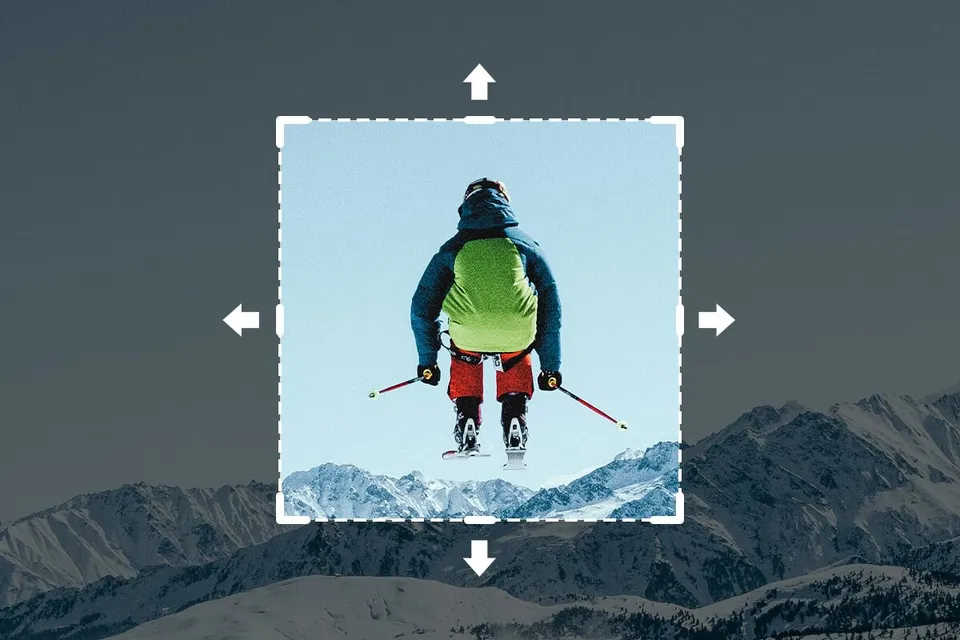
Upload an image, adjust the canvas in the direction you need, and generate a possible continuation of the visible scene.
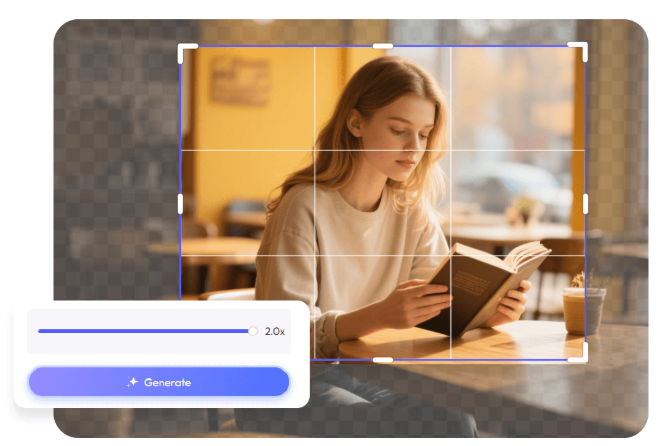
AI outpainting is a generative editing method that extends a picture beyond its existing boundaries. It studies visible colors, lighting, textures, perspective, and objects, then creates a possible continuation for the new canvas.
Use it to add more sky, floor, wall, landscape, studio background, or other surrounding content. The added area is generated by AI; it is not a recovery of the actual scene outside the original photograph.
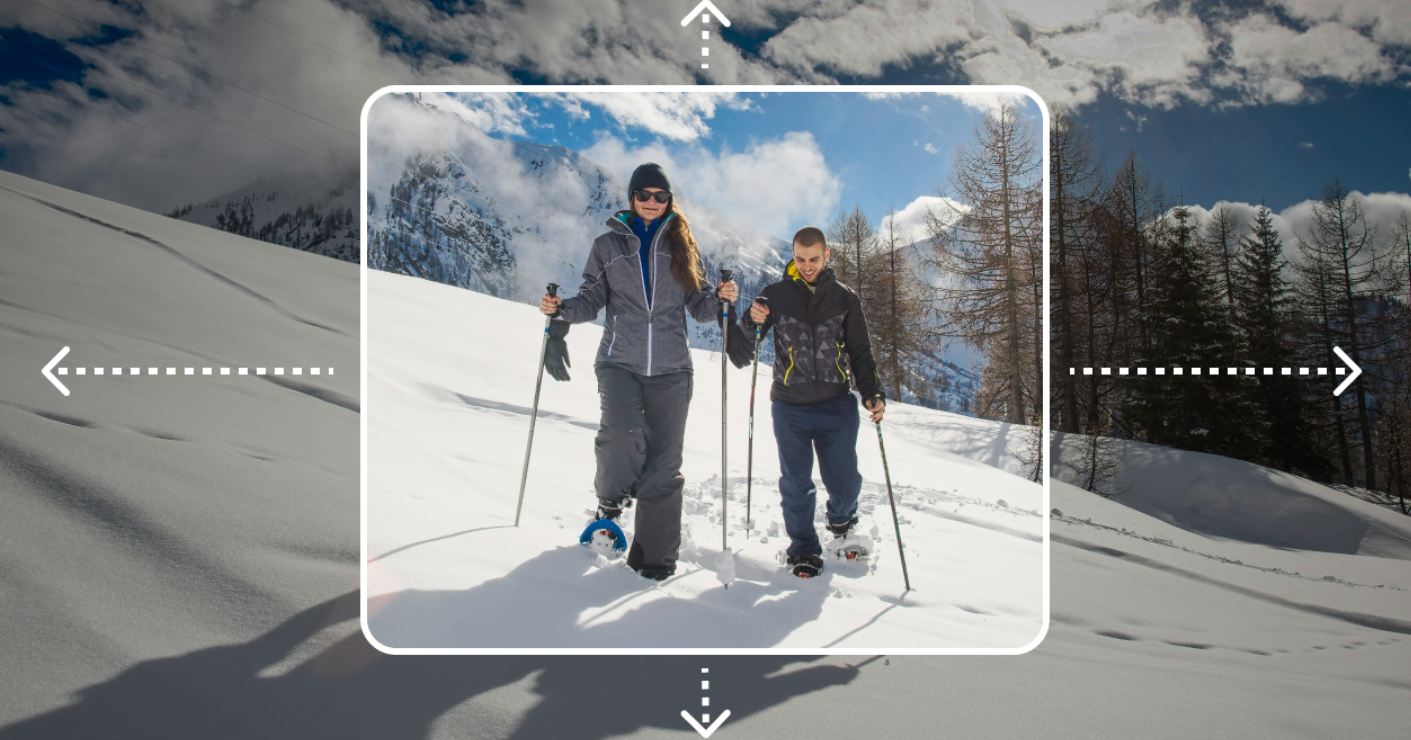
New content appears beyond the existing border instead of stretching the source.
Add room above, below, left, right, or around several sides.
Prepare square, portrait, landscape, or custom versions from one composition.
Upload, generate, compare, and download without desktop editing software.
Use JPG, JPEG, PNG, or WebP images from a phone or computer.
Inspect the transition and regenerate if the result does not suit the project.
Choose a JPG, JPEG, PNG, or WebP file from your device.
Adjust the frame where you want more visual space.
Let PxBee create a possible continuation of the scene.
Inspect patterns, faces, text, reflections, and straight lines before saving.
Extend left or right for a website banner, presentation cover, thumbnail, or advertisement. Add space above or below for more sky, ceiling, ground, floor, or background. Reposition the subject and expand several sides to create a new aspect ratio.
Create horizontal room for headlines, buttons, or product copy.
Add sky, floor, or background for a vertical layout.
Center or reposition the subject within a larger canvas.
Generate a quieter area for a logo, price, or call to action.
Adapt one source for more placements while keeping the main subject at its original scale. Review generated details closely whenever the result represents a real product, property, person, or location.
Convert a narrow or vertical photo into a horizontal hero image.
Add studio surface or background for ads and store graphics.
Prepare multiple placements without cutting away the subject.
Add breathing room around a headshot or personal photo.
Extend sky, water, vegetation, or open scenery.
Make room for a title, date, message, or decorative design.
Use the largest original available and expand in controlled amounts. A clear source gives the model more context, while a modest extension requires less invented content.
After the canvas fits your layout, improve clarity or make a focused edit with another PxBee tool.
Outpainting changes the composition. Upscaling increases the dimensions or apparent detail of the existing composition.
| Tool | Best for | What changes |
|---|---|---|
| AI Outpainting | Extending one or more image edges | Generates new surroundings outside the frame |
| AI Image Extender | Broad aspect-ratio and layout changes | Adds canvas around the source composition |
| HD Photo Converter | Making the current image larger | Increases dimensions and perceived detail |
| Generative Fill | Editing a selected interior area | Creates or replaces content inside the frame |
| AI Replace | Changing a selected object | Replaces a chosen item using a prompt |
A useful source and careful review are the strongest controls for a believable extension.
Avoid tiny thumbnails, screenshots, and heavily compressed copies.
Use several controlled generations for a major composition change.
Avoid placing faces, product labels, or critical evidence in generated areas.
Check the seam and newly created details before publishing.
Prepare alternate layouts with a broader expansion workflow.
Open toolCreate or replace content inside the existing frame.
Open toolIncrease the dimensions of the current composition.
Open toolRemove a distracting object before or after expansion.
Open toolExpand the canvas in the direction you need and generate a new composition online.