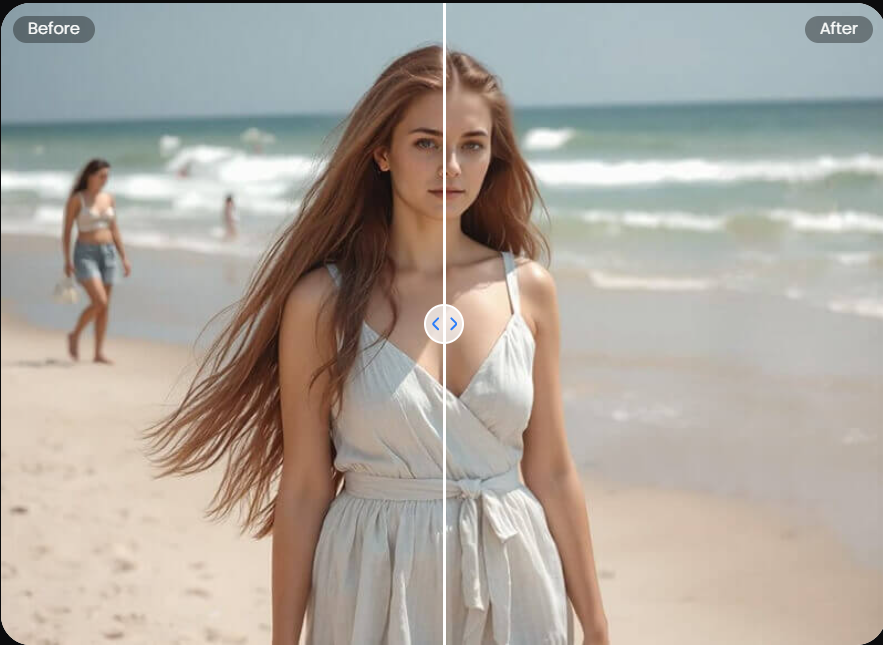
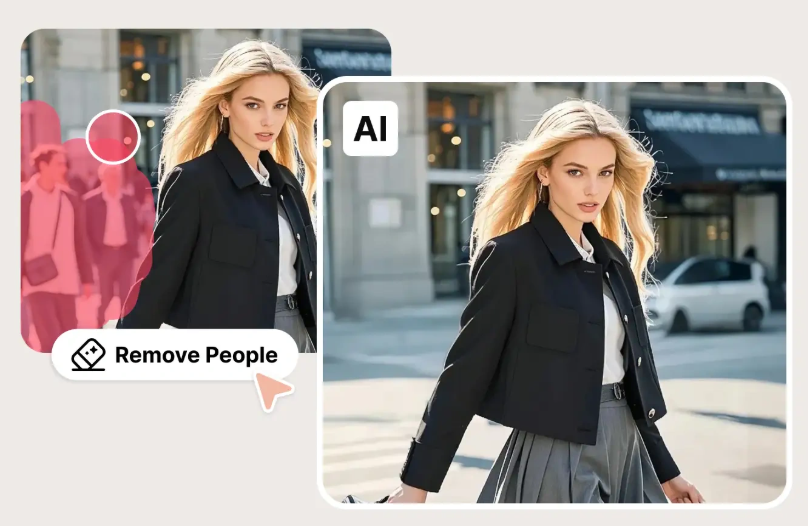
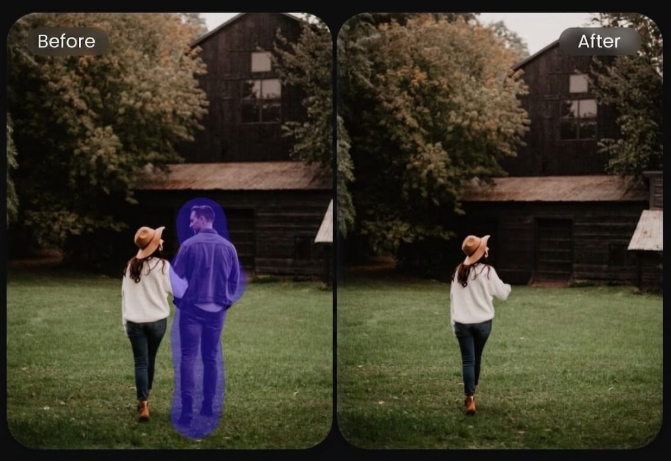
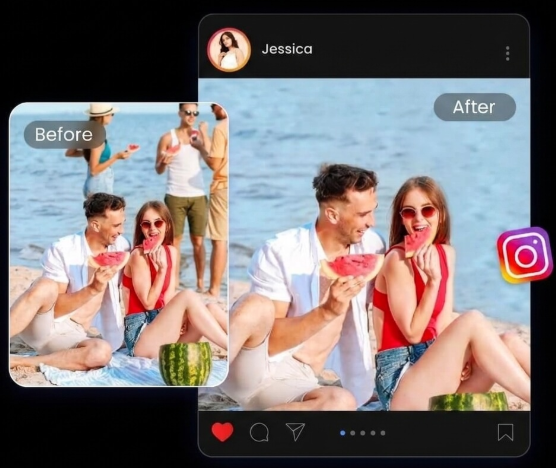
Clear a photobomber, passerby or background person from your image. Select who should disappear, and PxBee reconstructs the space they covered using the surrounding scene.
Remove Background People Without Recreating the Whole Photo
An unexpected person can distract from a travel photo, portrait, product image or event shot. PxBee lets you select the unwanted individual while keeping the rest of the picture as editing context.
Distant touristsBackground passersbyPhotobombersPeople near an edgeSmall background groupsProduct-photo bystandersTemporary property figures
After removal, the tool generates replacement pixels for the newly exposed area.
Selection plus reconstruction
What Does an AI Person Remover Do?
First, it identifies or accepts your selection of the person who should be removed. It then analyzes the visible background around that person and generates a plausible continuation of the scene.
Choose a JPG, JPEG, PNG or WebP photo. Use the original file when possible.
02
Select the unwanted person
Use automatic people detection when available, or brush over the complete person manually. Include hair, clothing, limbs, visible accessories, ground contact and any shadow that should disappear.
03
Apply the removal
PxBee clears the selected person and reconstructs the exposed background.
Use a smaller brush to remove remaining clothing, shadows or edge artifacts.
06
Download the result
Export the cleaned image in an available format. Keep the original when factual accuracy or auditability matters.
Workflow demonstration
Select, Remove and Inspect the Rebuilt Area
Use this demonstration as a general brush-and-reconstruction guide. In Person Remover, select only the unwanted person and review nearby people, shadows and background lines carefully.
Control who should disappear
Automatic Detection or Manual Brush?
Review every selection before applying it. Detection and brush controls depend on what is available in the live editor.
Automatic person detectionWhen supported, automatic mode can identify likely background people. Check that it did not select the main subject, reflections, statues, posters or overlapping people.
A non-overlapping background person is usually easier to reconstruct.
A strong use case
Remove a Photobomber
Photobombers are well suited to Person Remover when the unwanted person is behind the main subject and does not overlap them.
Select the complete photobomber.
Avoid painting over the main subject.
Include the photobomber’s shadow if visible.
Check hair and clothing fragments.
Inspect background lines after removal.
Apply a second small cleanup pass if needed.
Sky, water, sand, grass or a plain wall is generally easier than detailed architecture.
Landmarks, beaches and streets
Remove Tourists From Travel Photos
Remove tourists one at a time when possible. Each separate pass gives the tool more surrounding context and makes the reconstruction easier to inspect.
Watch for repeated structures
Brick and stoneRailingsWindowsPavement linesFencesStairsShorelinesBuilding edges
Generated reconstruction may bend, repeat or interrupt these structures.
Inspect shoreline texture and the space around the retained subject.
Edge-of-frame people are usually easier than overlapping group members.
Overlap increases difficulty
Remove Someone From a Group Photo
People in groups often overlap arms, clothing, hair or shadows. Removing one person may require reconstructing parts of another person that were never visible.
Select only the person who should disappear.
Avoid covering neighboring faces or bodies.
Remove remaining fragments separately.
Inspect hands and overlapping limbs.
Try another source photo when overlap is too complex.
Do not imply that every group-photo removal will look natural.
Product and marketplace images
Remove Background People From Product Photos
An unintended person can distract from a product or create rights and privacy concerns in vehicle photos, store interiors, product demonstrations, outdoor product images, event displays, furniture photography and marketplace secondary images.
Do not remove a person when doing so would falsely change the product’s scale, use, included service or safety context.
A person temporarily standing in a room or yard may be an appropriate cleanup target. Do not use the tool to conceal structural defects, permanent fixtures, damage, neighboring buildings, occupancy conditions that must be disclosed, safety hazards or material property features.
Keep the original and follow applicable real estate advertising, brokerage and disclosure rules. Digital editing should not create a materially misleading representation.
Context may still identify someone
Privacy: Removal Is Not the Only Option
If a person must remain for context, consider cropping, face blurring, pixelation, obtaining consent or choosing another photo.
A person may still be identifiable from clothing, location, body shape or context even after a face is removed or obscured. Person removal can reduce visibility, but it does not guarantee anonymity.
Reconstruction difficulty
Why Some People Are Harder to Remove
01
The person covers a large area
A large foreground person hides more of the background, so reconstruction requires more generated content.
02
People overlap
The tool may need to recreate part of someone who remains in the photo.
03
The background has strict geometry
Fences, tiles, stairs and architecture make distortions easy to notice.
04
Shadows and reflections remain
A person can disappear while their shadow, mirror image or reflection in water remains visible.
05
The image is compressed
Screenshots and repeatedly saved images provide less reliable texture and edge information.
06
The person touches the main subject
Removing them without changing the subject may require a very precise mask or another source image.
Precision and full-size review
Tips for More Natural Results
Start with a clear source, make deliberate selections and inspect every reconstructed region.
When an edit could materially change how viewers understand an event, product, property or relationship, disclose that the image was digitally altered.
Produce harassment or non-consensual intimate content
Person-removal questions
AI Person Remover FAQ
An AI Person Remover deletes a selected person from a photo and generates a plausible reconstruction of the space that person covered.
No. The real hidden pixels were not captured in the visible image. The tool estimates the missing area using surrounding context.
Upload the image, select or brush over the complete photobomber, apply removal and inspect the rebuilt background for remaining shadows or artifacts.
Yes, but remove them one at a time when possible. Separate passes usually provide more control and make errors easier to identify.
You can try, but overlapping people are challenging. The tool may need to reconstruct body parts or clothing that were not visible in the original.
PxBee may provide automatic people detection when available in the live editor. Always review the selected person before applying the edit.
Cover the person’s complete visible body, clothing, hair, accessories and any shadow that should disappear. Avoid selecting people who should remain.
The mask may have missed a shoe, shadow, clothing edge, hair or reflection. Use a smaller second selection over the remaining area.
The person may have covered complex content such as railings, tiles, windows or another person. Try a more precise selection or another source photo.
A selected foreground person may be removable, but the large hidden background area is difficult to reconstruct. This page is best suited to unwanted background people.
That is isolation, not person removal. Use Background Remover to keep the person and remove everything behind them. Open Background Remover.
You may remove temporary people, but the image must not materially misrepresent the property. Preserve the original and follow current disclosure and advertising rules.
Removal may help, but it does not guarantee anonymity. The person could remain identifiable from clothing, setting or context. Consider cropping or blurring when appropriate.
PxBee is browser-based, but brush accuracy, zooming and downloading can vary across current mobile browsers.
This interface accepts JPG, JPEG, PNG and WebP files up to 20 MB.
PxBee currently presents the tool as free. Review the live editor for any current generation limits, credits, resolution restrictions or paid exports.
This page allows image selection before login. Confirm any account requirement shown during processing or final download.
Confirm watermark behavior for the output size and plan shown in the live editor before downloading.
The result depends on source resolution, selected area, background complexity and export settings. Review the actual output dimensions.
Review the Privacy Policy for current processing, retention, deletion, security and model-improvement information before uploading private photos. Read the Privacy Policy.
Select, reconstruct, inspect
Remove the Distraction From Your Photo
Select the unwanted person, reconstruct the background and inspect the complete image before downloading.
Keep the original when factual accuracy or auditability matters.
Welcome back
Log in to PxBee AI
Choose a secure sign-in method. Connect these placeholders to your authentication provider before launch.