Portrait to landscape
Add space to the sides while keeping the person at a natural scale.
Turn a tightly cropped photo into a wider, taller, or better-balanced composition. PxBee creates new content beyond the original frame for websites, ads, presentations, product listings, and social media.
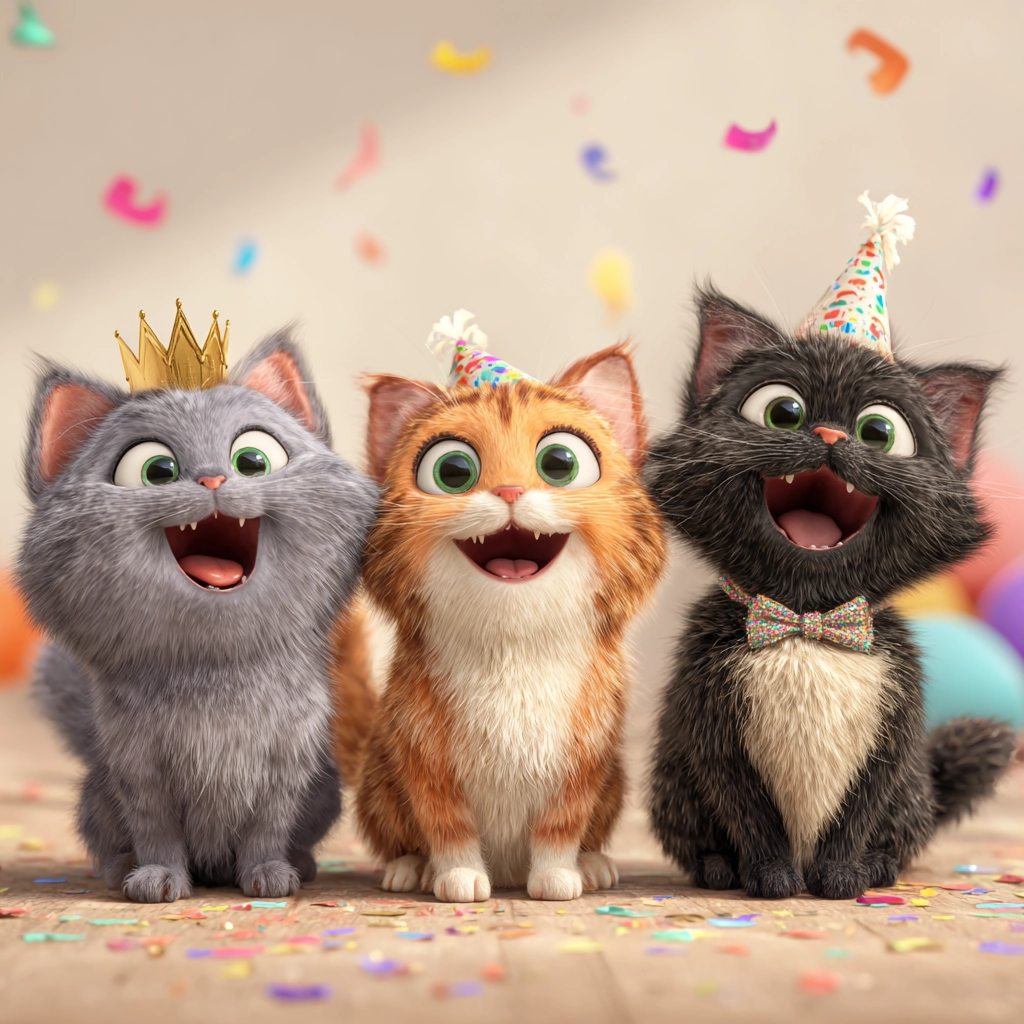
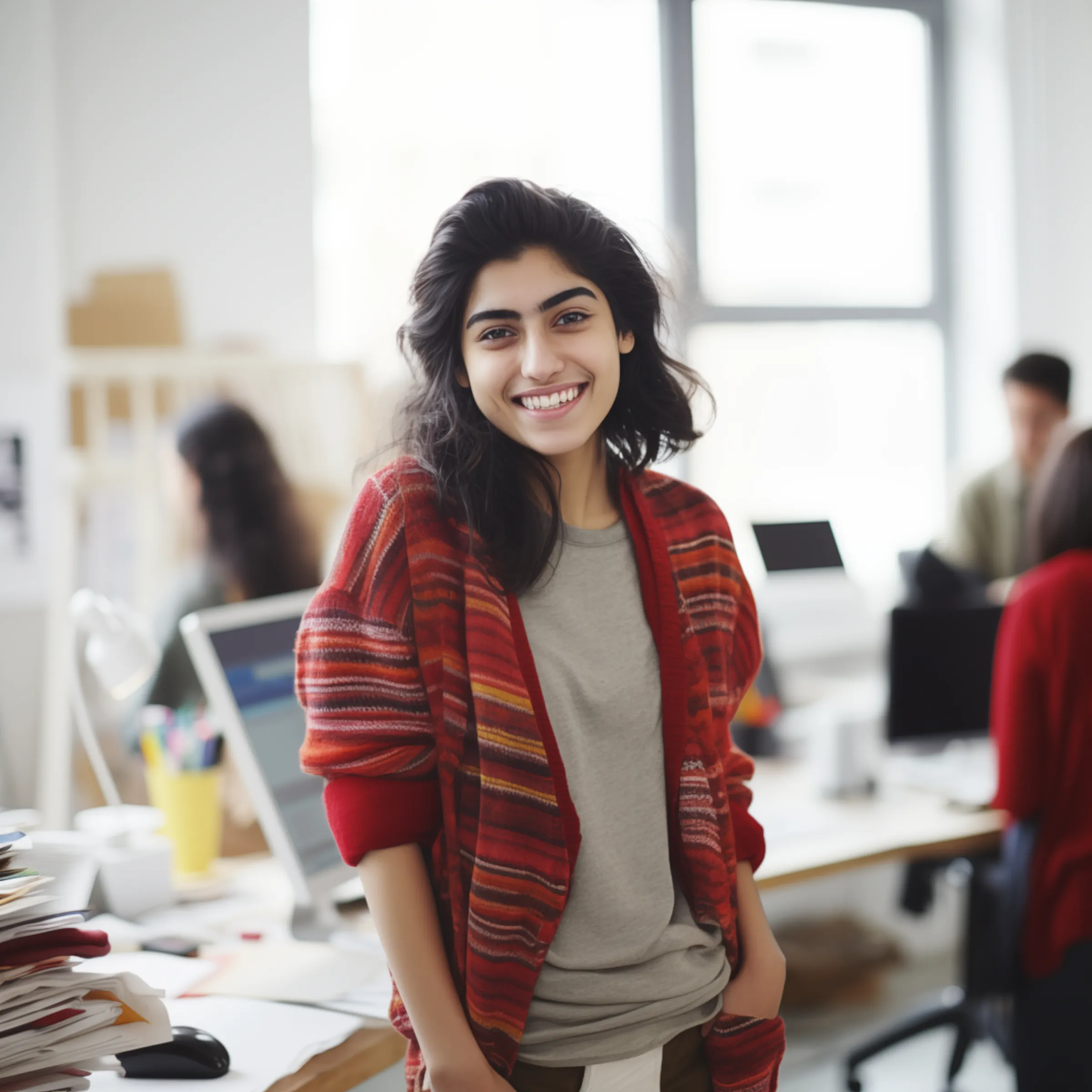
Choose a new aspect ratio, position the original image, and generate a possible continuation of the scene. The subject keeps its proportions while the canvas grows.
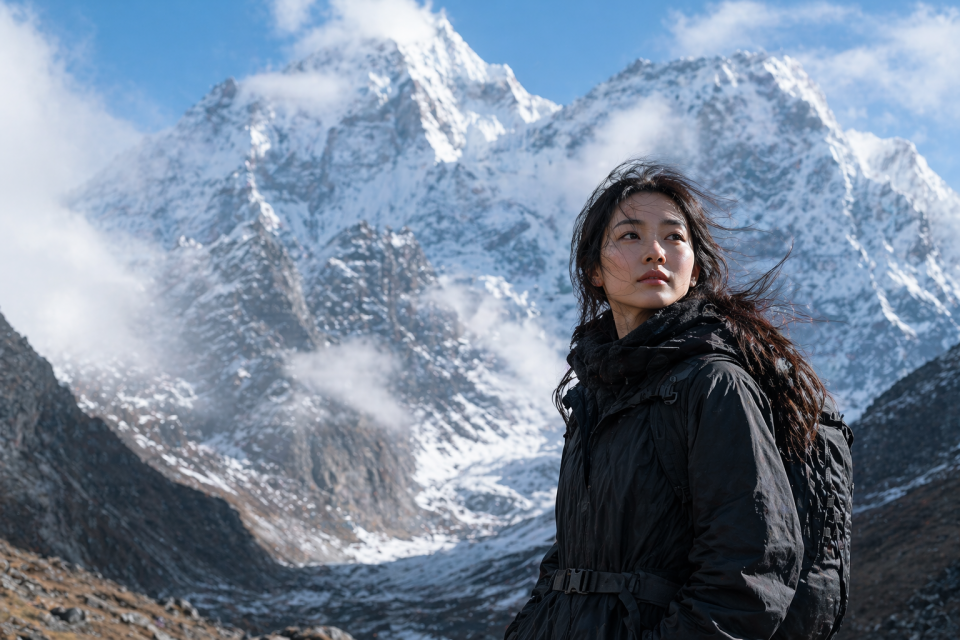
An AI image extender adds newly generated visual content beyond an image’s existing boundaries. It reads nearby colors, textures, lighting, perspective, and objects to suggest what could continue outside the frame.
This is different from stretching or simple resizing. The original image area remains intact, while PxBee creates additional sky, water, grass, walls, floors, patterns, or other surroundings in the expanded canvas.
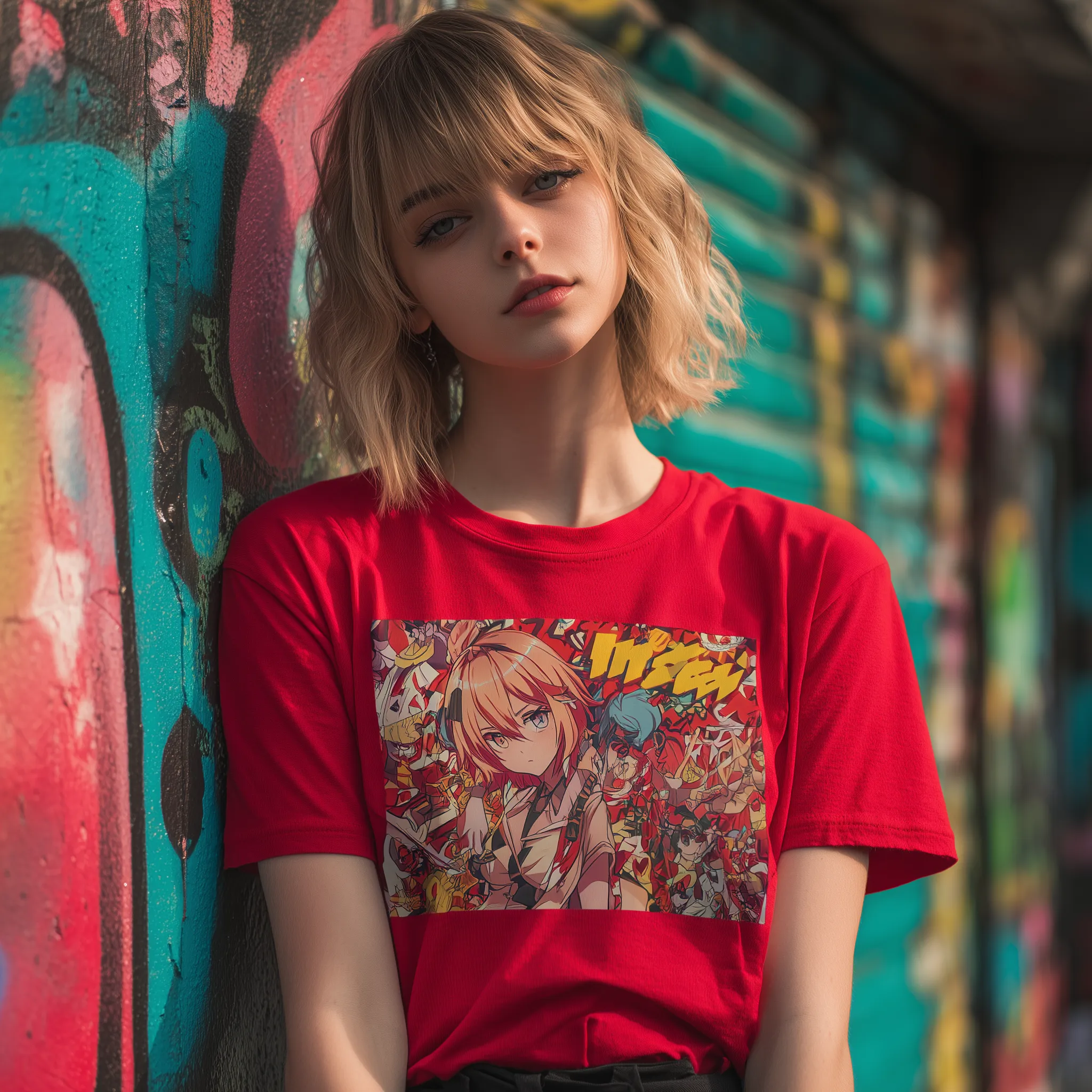
Add space to the sides while keeping the person at a natural scale.
Expand a rectangular photo into a square without cutting away the subject.
Create negative space for headlines, product details, or calls to action.
Add headroom, floor, sky, or side space around a tight composition.
Keep the source image area in place instead of distorting it.
Prepare new layouts online from desktop, tablet, or phone.
Choose a JPG, JPEG, PNG, or WebP file from your device.
Choose a preset ratio or position the original where you need new canvas.
PxBee creates a possible continuation using the visible scene as context.
Inspect the new boundary, regenerate if needed, and continue with the version you prefer.
Use 1:1 for square posts and catalog tiles, 4:3 for presentations and editorial images, 9:16 for stories and mobile placements, or 16:9 for banners, video covers, and website heroes.
Useful for marketplaces, profile grids, and social posts.
A balanced choice for slides, articles, and digital displays.
Prepare a full-height composition for stories and mobile creative.
Create more horizontal space for banners and video thumbnails.
Extend portraits for profile headers, product photos for marketplace layouts, and travel images for wider storytelling. The same source can become a website banner, a social post, a presentation visual, or an ad without forcing an unsuitable crop.
Add headroom or side space without enlarging the face.
Make room for pricing, labels, or campaign copy around a product.
Turn a smaller or vertical photo into a wider hero composition.
Match slides, email headers, and campaign graphics more naturally.
The generated area is a new visual interpretation, not a recovery of the real scene that existed outside the camera frame. Results can look convincing while still containing imaginary details.
Once the composition fits, refine the result with another focused PxBee tool.
These tools solve different image problems. Start with the task you actually need.
| Tool | Best for | What changes |
|---|---|---|
| AI Image Extender | Preparing alternate layouts and aspect ratios | Adds new canvas around the source image |
| AI Outpainting | Creative continuation beyond one or more edges | Generates a broader surrounding scene |
| HD Photo Converter | Making the current composition larger | Increases output dimensions and perceived detail |
| Generative Fill | Editing a selected area inside the frame | Replaces or creates content in a chosen region |
Natural extensions begin with a useful source and a realistic amount of new canvas.
A high-quality source gives the model stronger texture and edge information.
Leave enough context so the new sky, wall, ground, or background can continue naturally.
For a very large canvas, make controlled extensions and inspect each boundary.
Regenerate if the AI invents text, logos, architecture, clothing, or objects that do not fit.
Upload a photo, choose the composition you need, and create a wider, taller, or better-balanced version online.