Brush · prompt · generate

Add or Replace Image Content With Generative Fill AI

Edit one part of an image without starting over. Brush over an area, describe what you want to add or replace, and generate new content using the surrounding photo as context.
See How It Works
  • ✓ Start without signup
  • ✓ JPG, JPEG, PNG or WebP
  • ✓ Generated region is synthetic
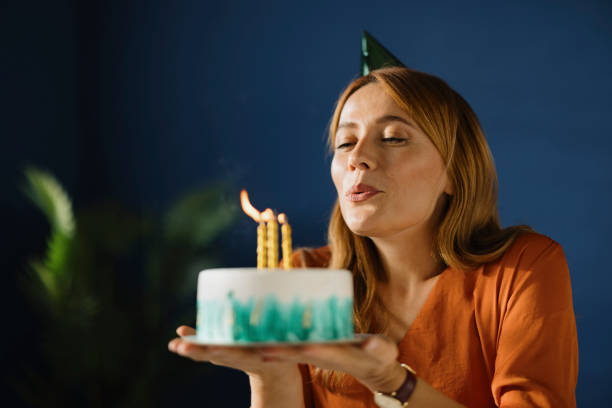
Original birthday cake before generative fill
Original area
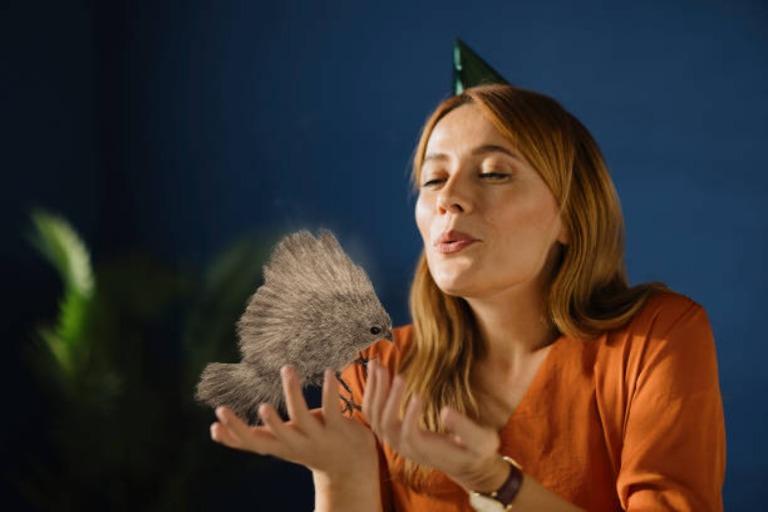
Generated squirrel replacing the selected cake
Generated interpretation
Localized prompt editing

Drag Your Photo Here

Upload an image, select an area and describe the new content.

Sample image ready for generative fill
Drag your photo hereor choose JPG, JPEG, PNG or WebP · up to 20 MBChoose Image

Choose an image and enter a prompt to continue.

Only upload images you may edit. Review the Privacy Policy.

A simple prompt inside a selected region

Edit a Selected Area With Generative Fill

PxBee combines an adjustable brush with text-guided image generation. Select part of the photo and describe an object, material, decoration, prop or detail.

The existing lighting, colors, texture and composition provide context. The generated region may look convincing without representing a real object, place, product or event.
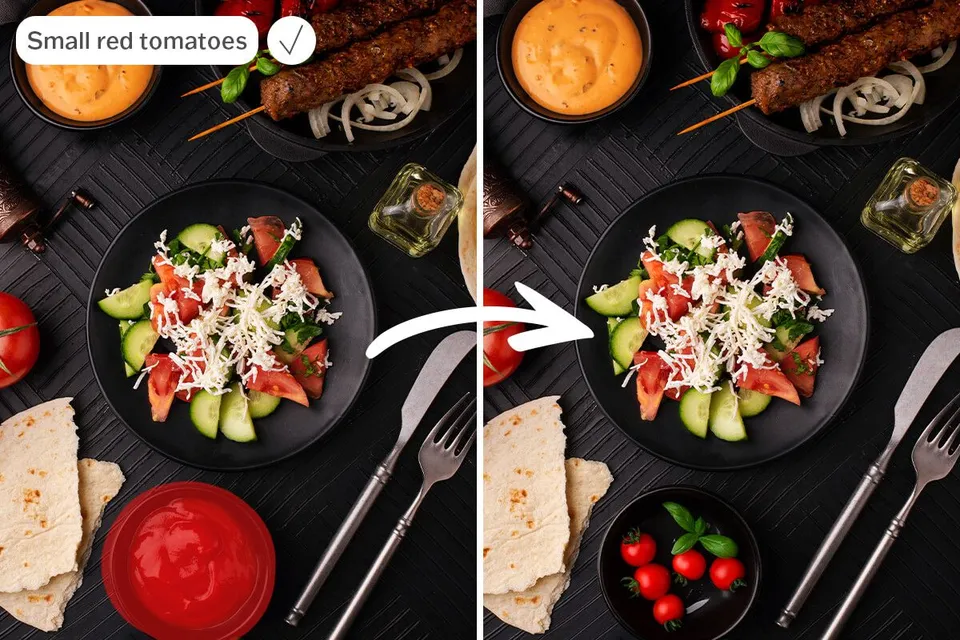
Tomatoes generated inside a selected area of a food image
A focused selection helps the generated addition fit the existing composition.
Add, replace, fill and explore

What Can You Do With Generative Fill?

Add an object

Place decor, a plant, prop, accessory, furniture or a creative element in open space.

Replace an object

Brush over an existing item and describe what should appear instead.

Fill an empty area

Generate content for a missing or visually incomplete region inside the frame.

Create a design concept

Experiment with furniture, decor, seasonal props, campaign elements or compositions.

Add atmosphere and storytelling

Introduce small details that support the mood without generating a completely new scene.

Copy and customize

Generative Fill Prompts You Can Copy

Avoid exact writing, brand logos, legal labels or complex numbers; add approved elements afterward.

Add a plant

Medium indoor olive tree in a simple cream ceramic pot, soft window light, realistic shadow on the floor.

Add furniture

Compact modern accent chair, warm beige fabric, wooden legs, front three-quarter view, matching room lighting.

Add a product prop

Small folded linen towel beside the product, neutral cream color, soft studio shadow, realistic scale.

Add seasonal decor

Subtle autumn leaves and two small pumpkins, warm natural colors, soft afternoon light, realistic arrangement.

Replace an object

Minimal round wooden side table, light oak finish, matching perspective and indoor lighting.

Add an outdoor element

Small wooden bench beside the path, weathered natural finish, soft overcast daylight, realistic shadow.

Add a celebration element

Two pastel balloons with thin strings, positioned behind the subject, soft indoor light, natural reflections.

Add a pet accessory

Small red fabric bow tie around the dog’s collar, realistic cloth texture, matching light and shadow.

Six practical steps

How to Use AI Generative Fill

  1. 01

    Upload an image

    Choose a JPG, JPEG, PNG or WebP file.

  2. 02

    Select the editing area

    Brush over the open space or object and reduce the brush size near detailed edges.

  3. 03

    Write a specific prompt

    Describe the object, color, material, position, perspective, lighting and finish.

  4. 04

    Generate the content

    Let PxBee fill the selected area using the surrounding image as context.

  5. 05

    Review important details

    Check boundaries, shadows, reflections, scale, perspective, faces, hands, text and product details.

  6. 06

    Download or revise

    Save the strongest result or adjust the brush and prompt for another interpretation.
Specific visual language works better

How to Write Better Generative Fill Prompts

  • Name one clear subject. Say “a small ceramic lamp,” not “some decorations and things.”
  • Describe material. Specify wood, glass, ceramic, fabric, metal, leather or stone.
  • Add color. Use terms such as warm beige, deep navy, pale sage or matte black.
  • Explain position. Say left of the table, behind the subject, centered, on the floor or attached to the wall.
  • Match the light. Mention window, overcast, warm indoor or studio lighting when it matters.
  • Keep it focused. Generate one main change at a time.
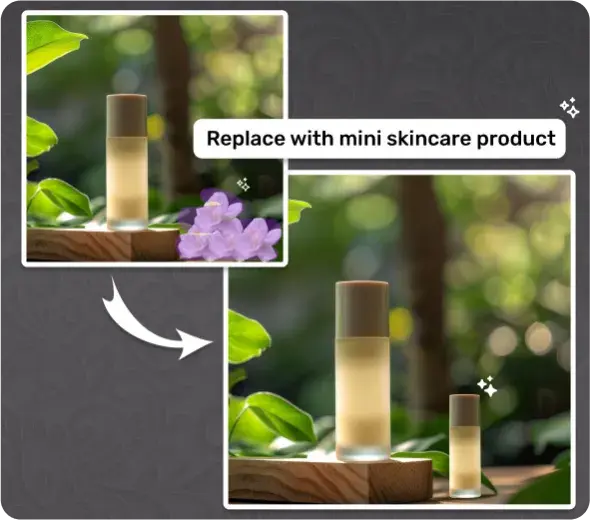
Small skincare object generated beside an existing product
Material, scale, placement and studio shadow make a prompt more useful.
Concepts—not verified reality

Use Generative Fill for Creative Projects

Product photography concepts

Add props, surfaces or seasonal context, then verify packaging, dimensions, materials, included items, labels and capabilities.

Interior-design visualization

Preview furniture, plants, lamps or decor as inspiration—not a construction plan, measurement or purchasing guarantee.

Portrait and celebration photos

Add decoration to an authorized portrait without fabricating events or changing identity without consent.

Pet photography

Add playful virtual accessories without forcing an animal to wear or interact with a real prop.

Marketing drafts

Explore campaigns, then replace generated logos, prices, disclaimers and product text with approved assets.

Creative artwork

Add fictional scenery, props, objects or surreal details for art and entertainment.

Human review is essential

Important Generative Fill Limitations

AI can create incorrect hands or faces, distorted text and logos, inconsistent shadows, wrong perspective, impossible reflections, repeated textures, altered product details, unrealistic scale, broken geometry, imaginary materials and inconsistent selection edges.

Do not use generated content as reliable legal, medical, forensic, architectural, historical or documentary evidence. Read AI Image Editing Limitations.

Clearly synthetic generated object replacement requiring review
Before generating

Generative Fill AI FAQs

It is a localized generative image editor that creates new visual content inside a brushed selection using your prompt and surrounding photo as context.

You can add an object, replace an item, fill an incomplete area or explore design, campaign and storytelling concepts.

Upload an image, brush the target area, describe one focused change, generate the result and inspect it before saving.

They use related localized generation. Generative Fill emphasizes adding or reconstructing content, while AI Replace emphasizes replacing selected content.

Yes. Select enough room and describe the object, position, scale, material, perspective, light and expected shadow.

Yes. Brush over the complete item and its relevant shadow, then describe what should appear in its place.

Name one subject and include visible details such as material, color, position, viewing angle, light and finish.

The selection or prompt may not provide enough scale context. Resize the mask or add specific size and placement language.

Generated content may not fully reproduce scene lighting. Check contact shadows, reflective surfaces and light direction and regenerate if needed.

Exact spelling, logos, numbers and legal labels are not reliable. Add approved text and brand assets afterward with a design editor.

Yes, for concepts using images you may edit. Verify packaging, dimensions, materials, labels, accessories and actual capabilities before publishing.

Yes, as inspiration. It is not a construction plan, measurement, purchasing guarantee or architectural visualization.

Yes, with permission. Avoid misleading event details and do not alter another person’s identity without consent.

Yes, as a virtual edit that avoids making the animal wear or interact with a real prop.

The uploader accepts JPG, JPEG, PNG and WebP files up to 20 MB.

PxBee currently presents the workflow as free. Check the live editor for current generation limits, credits, exports or paid options.

This page allows image selection without signup. Any later account requirement is controlled by the live editor.

That depends on source-image rights, PxBee terms and the accuracy of the result. Review current terms before commercial use.

No. Generated regions are synthetic and should not be treated as reliable legal, medical, forensic, architectural, historical or documentary evidence.

Review the current Privacy Policy for processing, retention, deletion and security information before uploading private material.
Create a new interpretation

Create a New Version of Your Image

Brush over the area, describe the result and let PxBee generate a new visual interpretation.

JPG, JPEG, PNG and WebP supported
Generated objects added inside a selected image area