Text detection or selection
PxBee either detects likely text automatically or uses the exact area you mark with the brush.
Erase an unwanted caption, date, note or text overlay from an image. Select specific words with the brush or use automatic text detection when available, then review the reconstructed background.
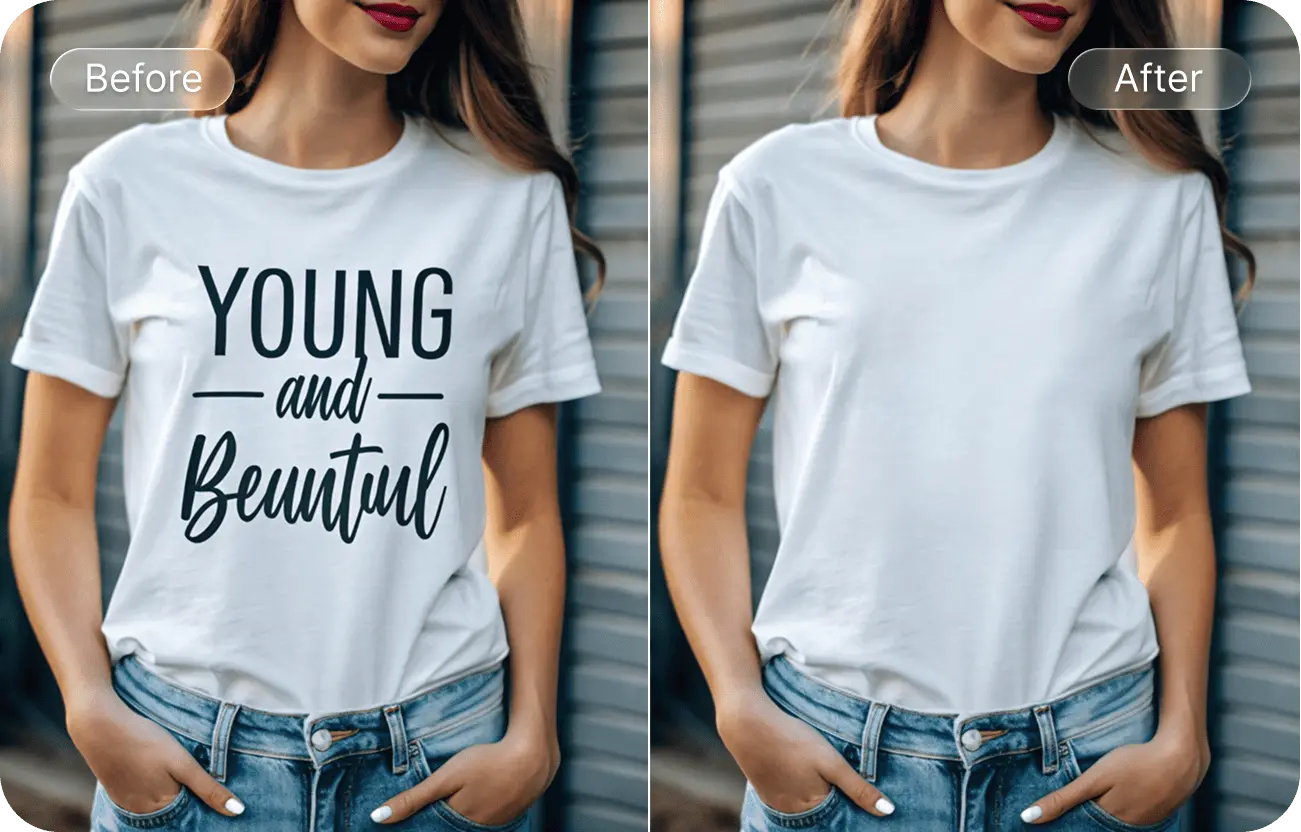
Choose a mode, select the complete wording, apply the edit and inspect the rebuilt area.
Text can become outdated, distracting or unnecessary. A photo may contain an old caption, temporary date, incorrect promotional line or personal information that should not be shared.
PxBee lets you select visible wording and remove it. The tool then generates replacement pixels based on nearby colors, textures and shapes.

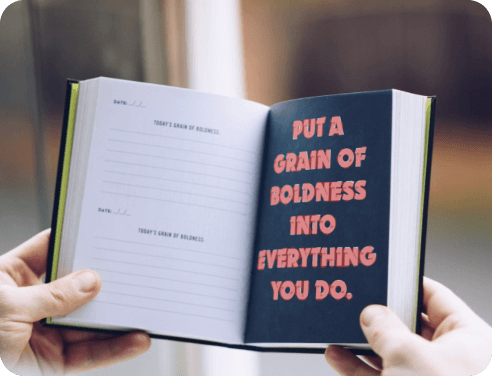
Removing visible words involves two separate tasks. Understanding both helps you judge the result honestly.
PxBee either detects likely text automatically or uses the exact area you mark with the brush.
After clearing the letters, the tool estimates what could appear behind them from the surrounding image.
Use Brush Remove when only certain words should disappear, text sits near a face or product, detailed patterns need protection, or some labels must remain.
Use Auto Remove when multiple visible text regions should be reviewed. Detection depends on size, contrast, angle, language and image quality.
Choose a supported image containing the text you want to remove. Use the highest-quality original available.
Select Brush Remove for specific wording or Auto Remove to identify multiple text regions when that option is available.
Paint over every letter, outline and shadow. Include a narrow margin around the visible text treatment.
PxBee removes the selected pixels and reconstructs the cleared area from nearby visual context.
Check texture, straight lines, product details, faces and any remaining letter fragments.
Use a smaller second pass to remove leftover outlines, glow or shadows.
Export the reviewed result in an available format and keep the original when authenticity matters.
A careful mask reduces the amount of content the model must invent.
Complete, precise selection protects nearby details and reduces visible remnants.
Glowing, outlined or shadowed text occupies more space than its main letter shapes.
A large mask asks the tool to generate more of the image than necessary.
Process a headline, caption and date in separate passes when they appear apart.
Use a smaller brush near faces, hands, product labels, clothing patterns and building edges.
Captions over simple areas are often practical cleanup targets: text over sky, a date over a plain wall, a label over a solid color, a note over an unfocused background or promotional copy over open visual space.
Text over faces, products, architecture or patterned clothing is harder because the hidden region contains more detailed information.
If you own the original design, text removal can prepare an existing visual for a revised layout by clearing expired sale dates, old contact details, previous campaign headlines, temporary event wording, obsolete pricing or discontinued offer language.
After clearing the old text, add accurate new wording in a proper design editor. Generative reconstruction is not a reliable typography editor.
Do not remove required legal disclosures, product warnings or material terms.
Authorized text cleanup can remove a temporary promotional overlay or an unrelated background sign. Do not remove safety warnings, ingredient information, model numbers, required labels, certification marks, usage instructions, material disclosures or authentic brand identifiers.
A cleaned product image must not misrepresent the item customers will receive. For a clean product background, use the Background Remover or Background Changer instead of erasing large areas manually.
You can remove wording from a meme or social graphic you created or have permission to edit, then use the cleaned version as a starting point for new copy.
Copyright may still apply to the underlying photograph, illustration, character or template. Removing a caption does not make the source image free to reuse. For a specified visual replacement rather than blank reconstruction, use AI Replace.

The tool may help clear a phone number on a sign, an address label, a visible account identifier, a date or a location note from an everyday image.
Do not rely on generative text removal for contracts, identification, financial records, legal exhibits or PDFs. Secure redaction must remove underlying data, metadata, hidden layers and recoverable content—not merely change visible pixels.
For casual sharing, blurring, cropping or pixelation may sometimes communicate the edit more clearly.
PxBee may remove handwritten annotations when surrounding visual context is available. Do not remove or alter signatures from contracts, checks, identification, certificates, financial records, legal documents, consent forms or official correspondence.
Removing a signature from a record can facilitate fraud or destroy evidence. Keep original documents unchanged. The Signature Background Remover is for isolating a signature you have permission to use—not altering signed records.
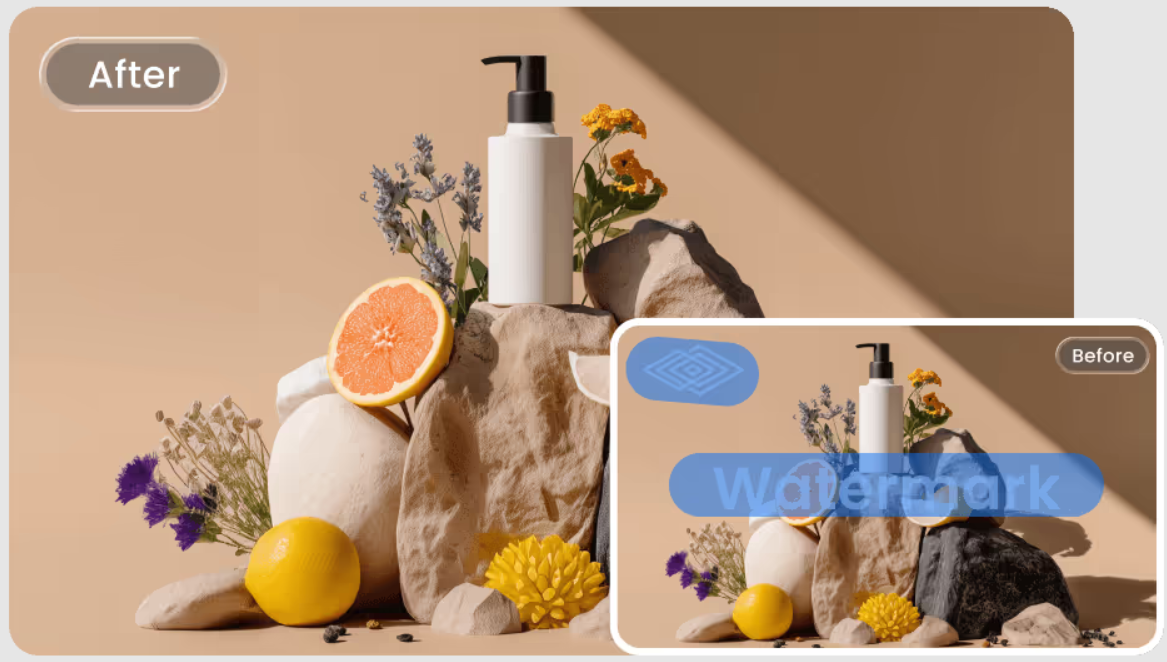
Watermarks and copyright notices commonly indicate ownership or licensing restrictions. Only remove one when you created the image, obtained unwatermarked rights, the mark was added accidentally or the rights holder explicitly authorized removal.
Do not remove watermarks from stock previews, news photographs, artwork or third-party marketing assets to avoid licensing requirements.
Use the focused Watermark Remover for authorized images →The tool must generate human details that were never visible.
Fabric, bricks, tiles, hair and foliage require consistent texture reconstruction.
Semi-transparent letters mix with the background instead of fully covering it.
Missed effects can leave visible traces after the main letters disappear.
Screenshots and social downloads may contain blocks and halos around text.
Perspective and curved surfaces make the affected area more complex.
Automatic selection may include product, sign or clothing text that should remain.
The most useful improvement is usually a careful selection—not a larger mask.
A higher-quality source provides better background detail around the lettering.
Manual selection is safer when only one caption or line should disappear.
Include outlines, shadows, glow and anti-aliased edges.
Separate passes are easier to inspect and correct.
Check shelves, walls, product edges and architecture after reconstruction.
For recurring designs, retain an editable source without flattened text layers.
Add exact wording with a typography editor; use AI Replace for visual replacement.
| Goal | Recommended tool |
|---|---|
| Remove selected wording | Remove Text From Image |
| Remove any selected object | Magic Eraser |
| Declutter several small elements | Cleanup Pictures |
| Remove an emoji or sticker | Remove Emoji From Photo |
| Replace selected visual content | AI Replace |
| Remove an authorized watermark | Watermark Remover |
| Remove the complete background | Background Remover |
Select only the words or letters you want to erase.
When supported, PxBee scans for likely text regions. Review every selection.
The tool creates replacement pixels using nearby image content.
Match the brush to small captions, outlines or larger headlines.
Remove selected wording without intentionally regenerating the complete image.
Upload JPG, JPEG, PNG or WebP images up to 20 MB.
Only edit images you own or have permission to modify. Keep an unedited original when authenticity, accountability or legal compliance matters.
Read AI image editing limitations before using reconstructed images in sensitive contexts.
Upload your image, select the unwanted wording and inspect the reconstructed background before downloading.
Only edit images you own or have permission to modify.