One subject · several background choices

Change Any Photo Background Online

Upload a product, portrait or object photo. PxBee prepares the main subject so you can make the background transparent, add a color, upload your own image, blur the original scene or choose an AI background.

Try a Sample
  • JPG, JPEG, PNG and WebP
  • Up to 20 MB
  • Color, image, blur and AI choices
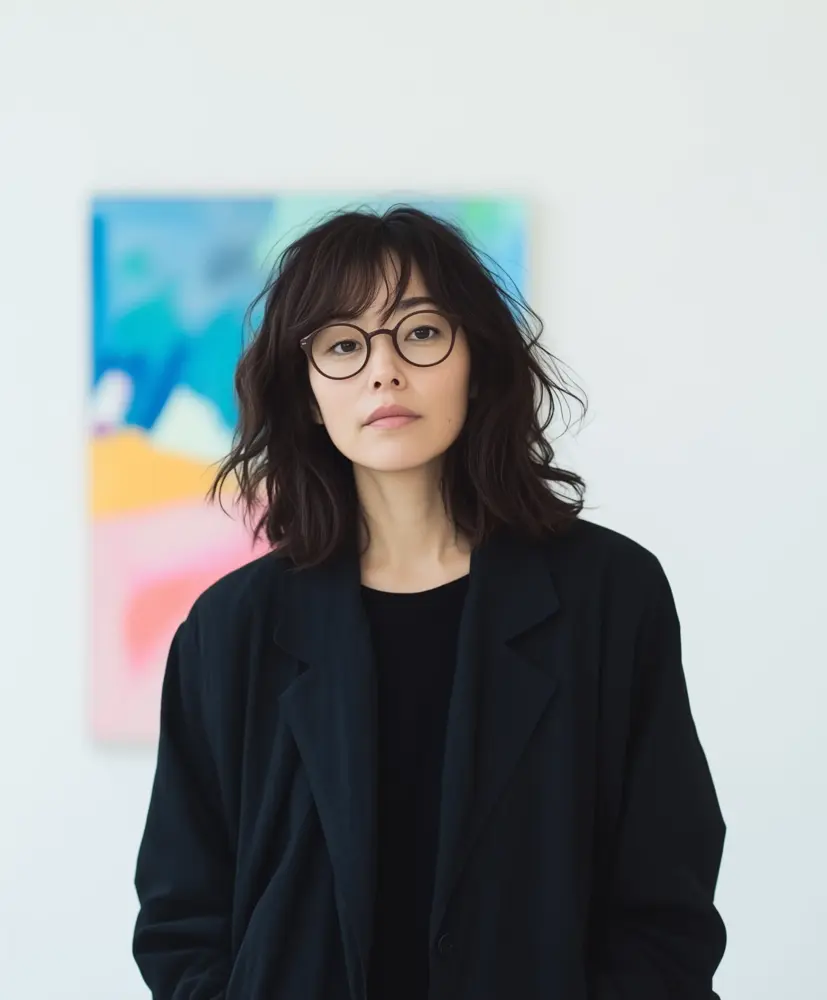
Portrait before its background is changed
Original
Portrait after changing to a new background
Changed background
Flexible finishing options

One Photo, Several Background Options

A distracting or unsuitable background can limit where a photo can be used. PxBee’s AI Background Changer prepares the subject and gives you several ways to finish the image.

  • Keep the background transparent
  • Apply white, black or another solid color
  • Upload a background image you already own
  • Blur the original setting
  • Explore an AI-created background

Use the result in product promotions, presentations, social posts, profile graphics, ads and personal designs.

Drop your photo here

choose a JPG, JPEG, PNG or WebP image

Choose ImageMaximum file size: 20 MB
Product sampleProductPortrait samplePortraitAnimal sampleAnimal

Select an image to open the Background Changer.

Review the Privacy Policy before uploading private content.

Automated subject preparation

What Is an AI Background Changer?

An AI background changer detects the main subject in a photo, separates it from the surrounding scene and allows a different background to be applied.

Traditional editing may require drawing around the subject manually. PxBee automates the initial separation and describes remove or restore controls for supported corrections.

The result still needs human review. Fine hair, transparent objects, soft shadows and low-contrast edges can challenge any automatic tool.

Need only a clean cutout? Open Background Remover →
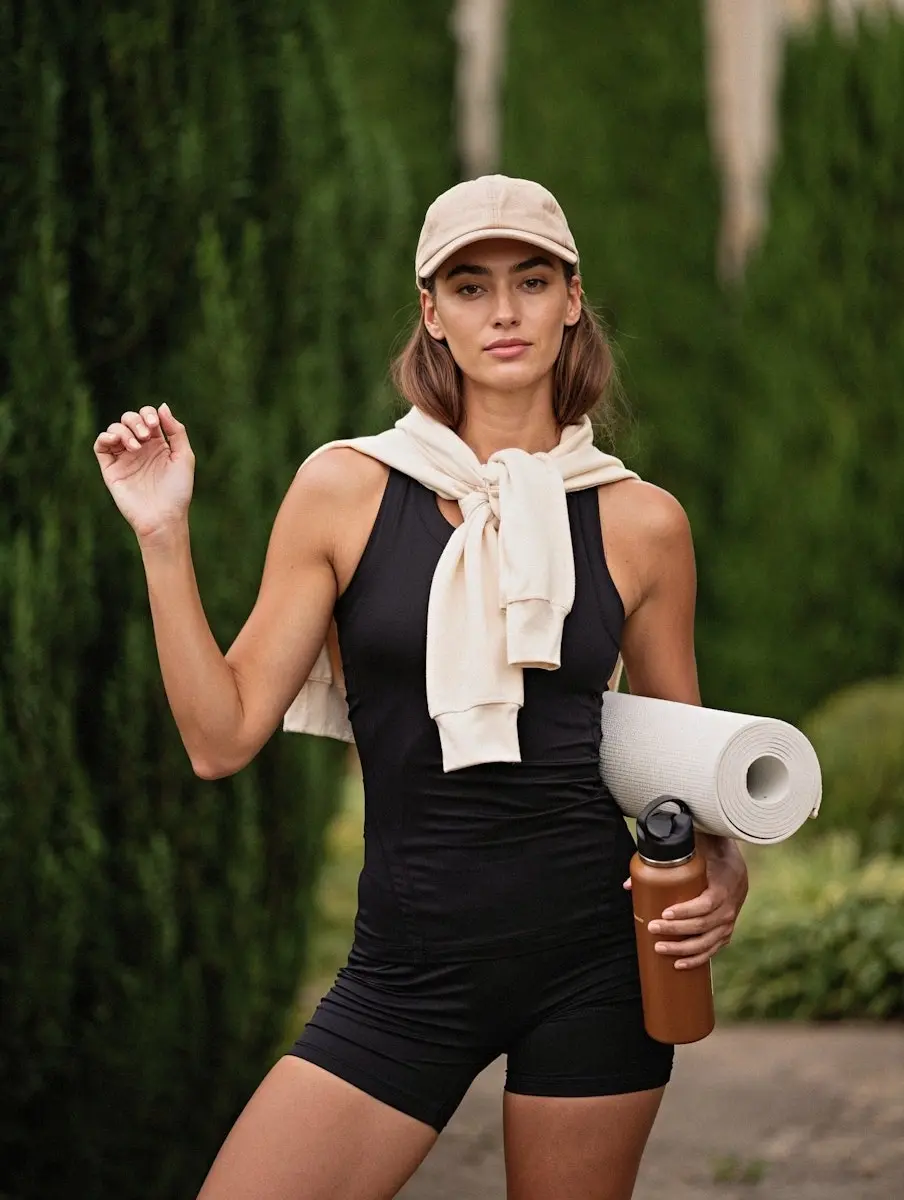
Portrait subject in its original outdoor background
Start with a clear subject and visible boundaries.
Five practical steps

How to Change a Photo Background

  1. 01

    Upload your image

    Choose a JPG, JPEG, PNG or WebP image containing a clear primary subject.

  2. 02

    Prepare the subject

    PxBee analyzes the photo and isolates the likely foreground subject from the current scene.

  3. 03

    Check the cutout

    Review hair, fur, fingers, shadows, product edges and openings. Use remove or restore controls when available.

  4. 04

    Select your new background

    Choose transparency, a solid color, an uploaded image, a blurred original scene or an AI background.

  5. 05

    Preview and download

    Inspect the full composition before exporting. Use PNG when you need transparency.

Preview one subject across options

Choose the Right Background

Use the selector to compare finishing directions. Actual available controls appear in the production editor.
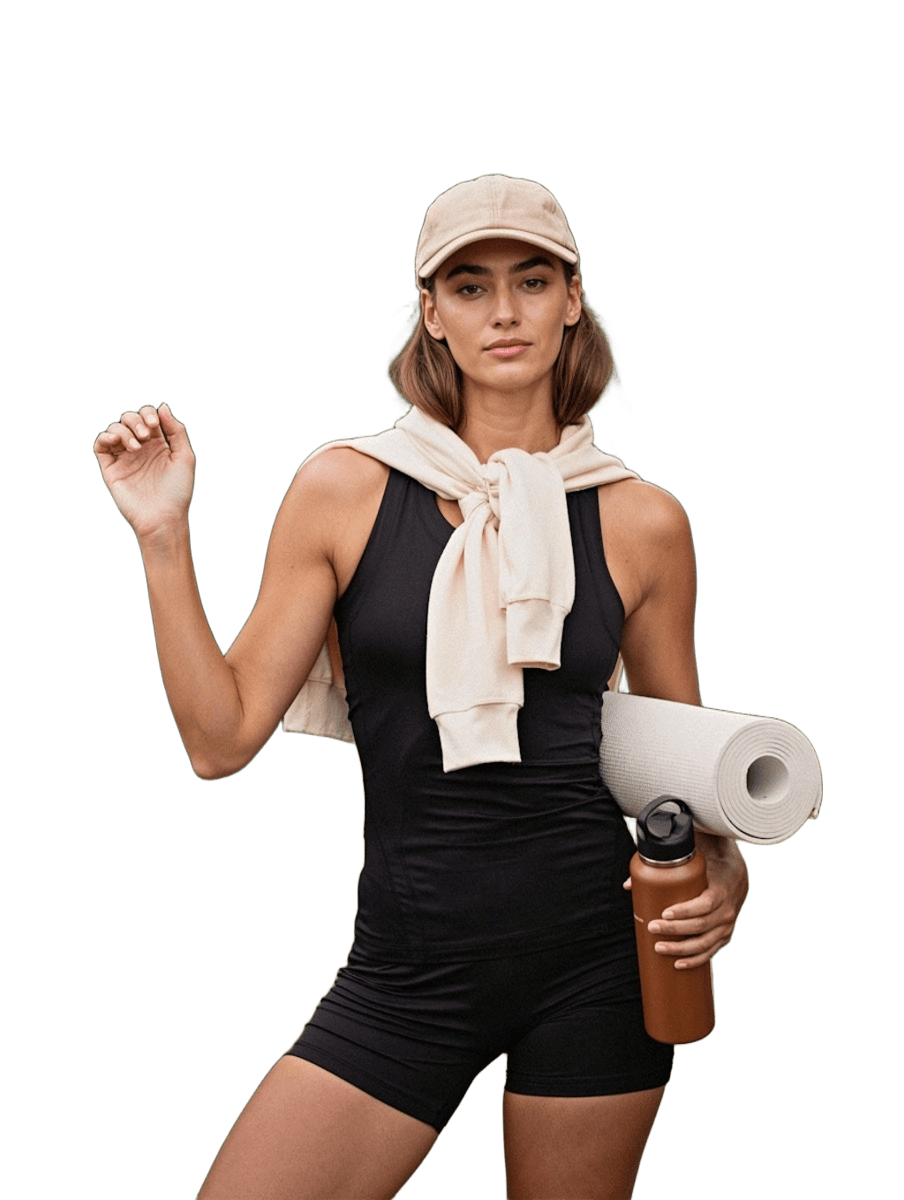
Original portrait backgroundPortrait subject shown on the selected replacement background
TransparentCreate a reusable subject cutout for another design.

Change the background to white

White suits clean layouts, documents and many product workflows. It is not correct for every marketplace or official document. Use the White Background Tool.

Upload your own background image

Add a specific office, room, landscape, campaign graphic or branded design. Use only images you own or may reuse.

Blur the original background

Retain the existing scene while reducing distraction. Use moderate blur and inspect the subject boundary.

Use an AI background

Try a studio, indoor, outdoor, minimalist or seasonal setting with the AI Background Generator.

Multiple placements from one source

Change Product Photo Backgrounds

One product may need a transparent cutout, white catalog background, brand-color promotion, lifestyle scene, seasonal campaign or blurred contextual setting.

The replacement background should not change the product’s actual color, shape, label, included accessories or proportions.

Check marketplace rules

Rules vary by platform, category and placement. A lifestyle background may work for secondary images or advertising but not a primary listing. Verify current requirements before publishing.
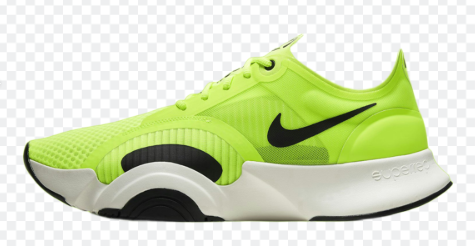
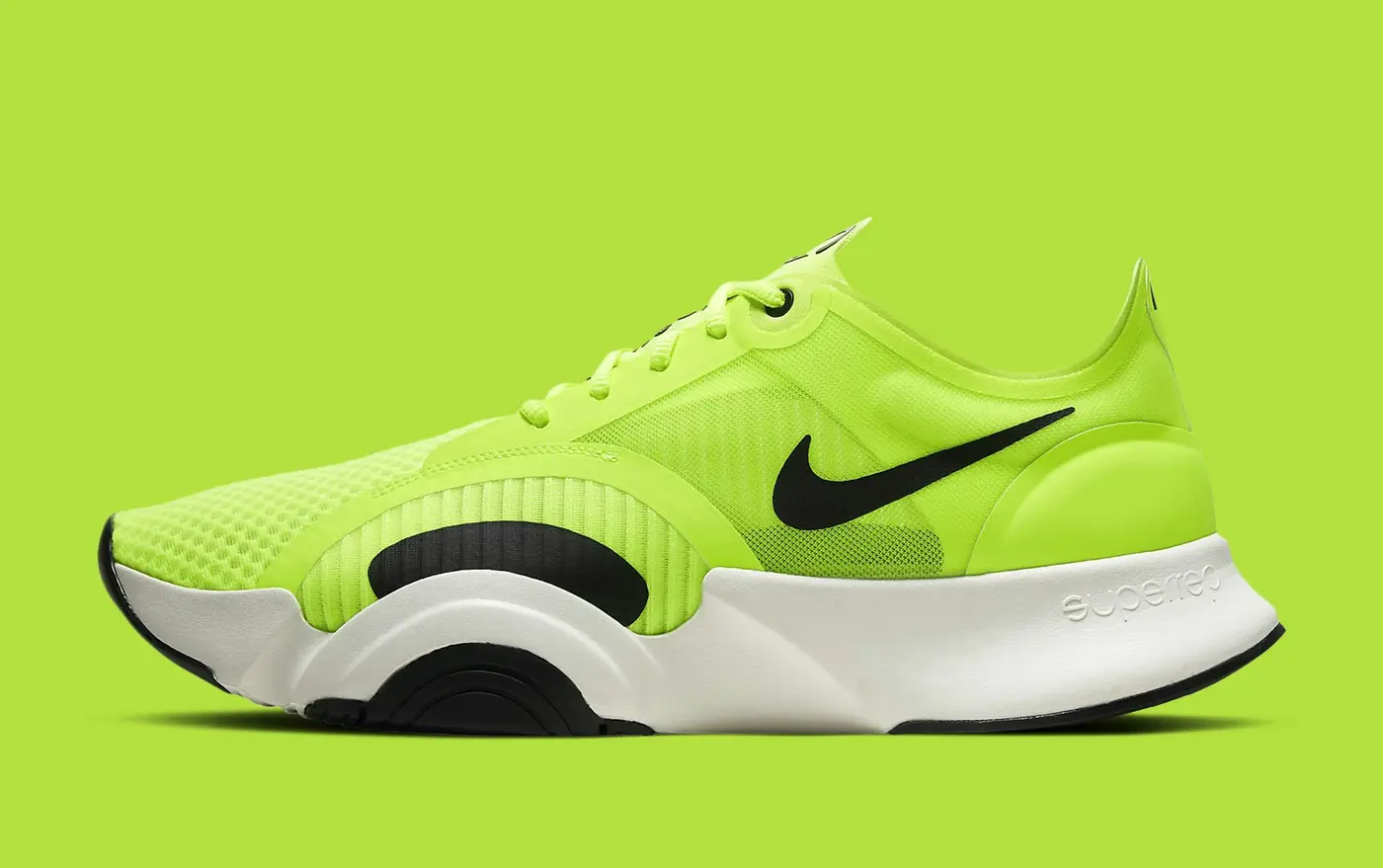
Learn to create a product background with AI →
Product cutout on a clean white backgroundProduct shown in a lifestyle replacement scene
White and contextual backgrounds serve different placements.
Profiles, presentations and campaigns

Change Portrait Backgrounds

Replace a distracting portrait setting with a cleaner color, office, outdoor background or creative scene.

Portrait with its original indoor background
Original portrait setting
Portrait with a new travel-inspired background
Replacement background concept

Potential uses

  • Team-page graphics
  • Profile images
  • Social posts
  • Speaker profiles
  • Presentations
  • Event graphics
  • Creative portraits

Do not describe a generated or replacement background as a real location when that distinction matters.

Adapt one photo to a campaign

Change Backgrounds for Social Media and Ads

Use solid colors for simple branded graphics, uploaded campaign art for controlled layouts, or AI-generated scenes for early creative concepts.

Leave enough empty space for:

Changing a background does not guarantee more clicks, engagement or sales. Results still depend on the offer, audience, message and design.

Portrait background with moderate blurSharp portrait subject over a blurred original sceneModerate blur
Keep the scene, reduce distraction

Blur a Photo Background

Background blur can emphasize the main subject without replacing the original setting.

  • Use moderate blur
  • Keep subject edges sharp
  • Check hair and semi-transparent objects
  • Avoid bright or dark halos
  • Preserve relevant environmental context
  • Compare the edited image with the original

Blur is not the same as removal. The original scene remains visible but less detailed.

Lighting, contact and perspective

How to Make a Replacement Background Look Natural

Review the complete image at full size after choosing a replacement.

01

Match the light direction

A subject lit from the left can look pasted onto a scene lit strongly from the right.

02

Match the camera angle

A product photographed at eye level may not fit a background shown from above.

03

Add an appropriate contact point

Products should appear to rest on a believable surface rather than float.

04

Review edge color

The original background may reflect color onto hair, glass, clothing or glossy products.

05

Check scale and perspective

Furniture, people and products should appear proportionate to the replacement scene.

Inspect fine details

Zoom in on hair and fur, fingers, jewelry, product handles, glass, lace, thin straps and soft shadows.

Read AI Image Editing Limitations →
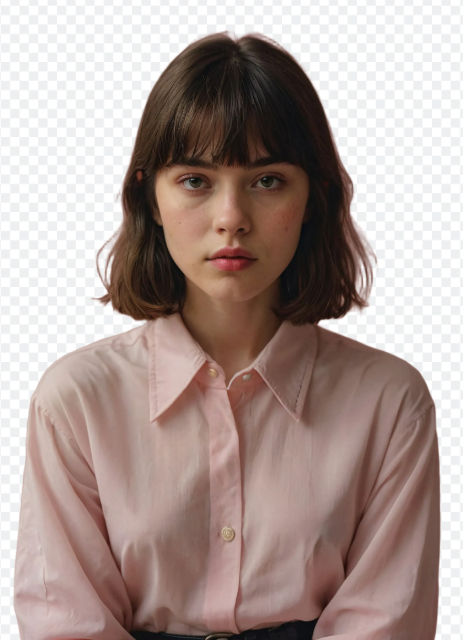
Fine subject edges reviewed after changing a photo background
Choose the most direct workflow

Background Changer, Remover or Generator?

Each PxBee page owns a different finishing intent.

ToolUse it when you want to
Background ChangerChoose among transparency, color, uploaded image, blur or AI background
Background RemoverRemove the current background
Transparent Background MakerFinish with transparency
White Background ToolFinish with white
AI Background GeneratorCreate or apply an AI scene
AI Image ExtenderExpand the image beyond its current edges
Background replacement questions

AI Background Changer FAQ

An AI background changer identifies the primary subject in a photo and lets you remove, blur or replace the surrounding background.

Upload a supported image, let PxBee prepare the subject, review the edges, choose a replacement background and download the finished image.

PxBee describes an option for uploading a custom background image. Use an image you own or have permission to reuse.

Yes. Select white after the subject has been prepared. The White Background Tool offers a more focused workflow. Open White Background Tool.

Yes. Keep the cleared area transparent and export in a format that supports transparency, such as PNG. Open Transparent Background Maker.

PxBee describes an adjustable background-blur option. Review the subject boundary carefully after applying it.

A background remover clears the original background. A background changer also lets you apply a color, image, blur effect or AI scene.

The Background Changer supports several outputs, while the AI Background Generator focuses on creating or applying generated scenes. Open AI Background Generator.

PxBee describes remove and restore controls. Use them where available to correct parts of the subject mask.

PxBee is browser-based. Actual upload, brush, preview and download behavior can vary across current iPhone and Android browsers.

The current interface accepts JPG, JPEG, PNG and WebP files up to 20 MB.

Output depends on the source, mask accuracy, export dimensions and compression. Review the actual output dimensions and format before downloading.

PxBee currently presents the tool as free. Review the live editor for any current credit, daily-use, resolution or export limits.

This page allows image selection before login. Confirm any account requirement shown in the full editing and download workflow.

Confirm watermark behavior for the output size and plan shown in the live editor before downloading.

A plain background may help, but PxBee cannot guarantee compliance. Check the issuing authority’s current specifications and do not edit a photo when alteration is prohibited.

Commercial use depends on PxBee’s terms and the rights attached to the source and replacement images. Review the current product terms.

Review the Privacy Policy for processing, retention, deletion and model-improvement information before uploading private content. Read the Privacy Policy.
One photo, the background your project needs

Ready to Change Your Background?

Upload your photo, choose the background that fits your project and inspect the result before downloading.

View Options
JPG, JPEG, PNG and WebP · Maximum 20 MB